Installing Moodle
Remember to configure DNS in Xneelo console if required
Downloading Moodle
- Go on this page and select the installation which suits your needs
- Navigate to /tmp folder and download the Moodle package with wget (replacing
https://link-to-moodle-package.comwith the appropriate download link for Moodle)cd /tmpwget https://link-to-moodle-package.com - Untar the downloaded package (replacing moodle-package.tar.gz with the appropriate name of the downloaded package)
tar -zxfv moodle-package.tar.gz - Move the uncompressed Moodle folder to /var/www (replacing moodle-folder with the name of the uncompressed folder)
mv moodle-folder /var/www - Change the owner of the folder and all the files
chown -R /var/www/moodle-folder
Moodle Web Installation
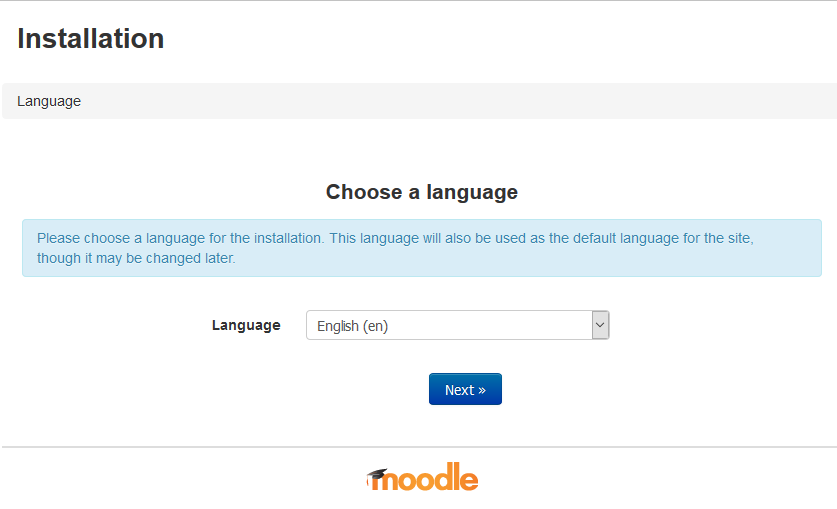
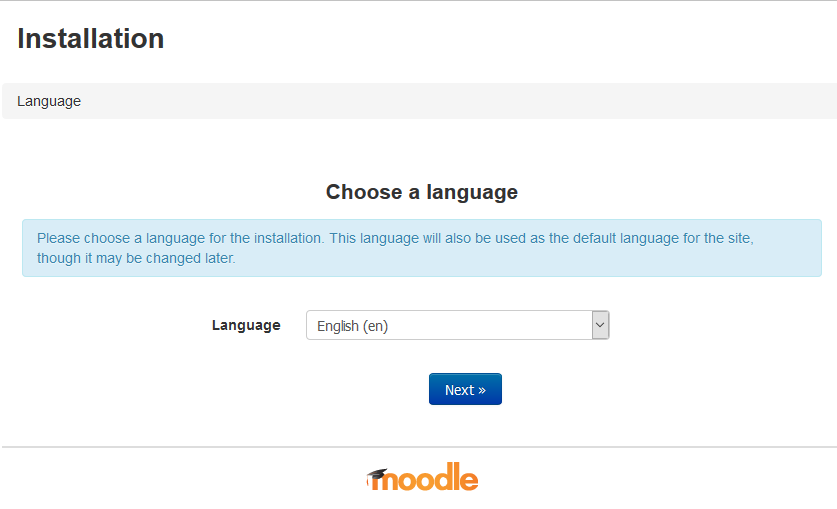
- Open your browser, you should get a page similar to this when you open the URL of the website. Select the language and click Next
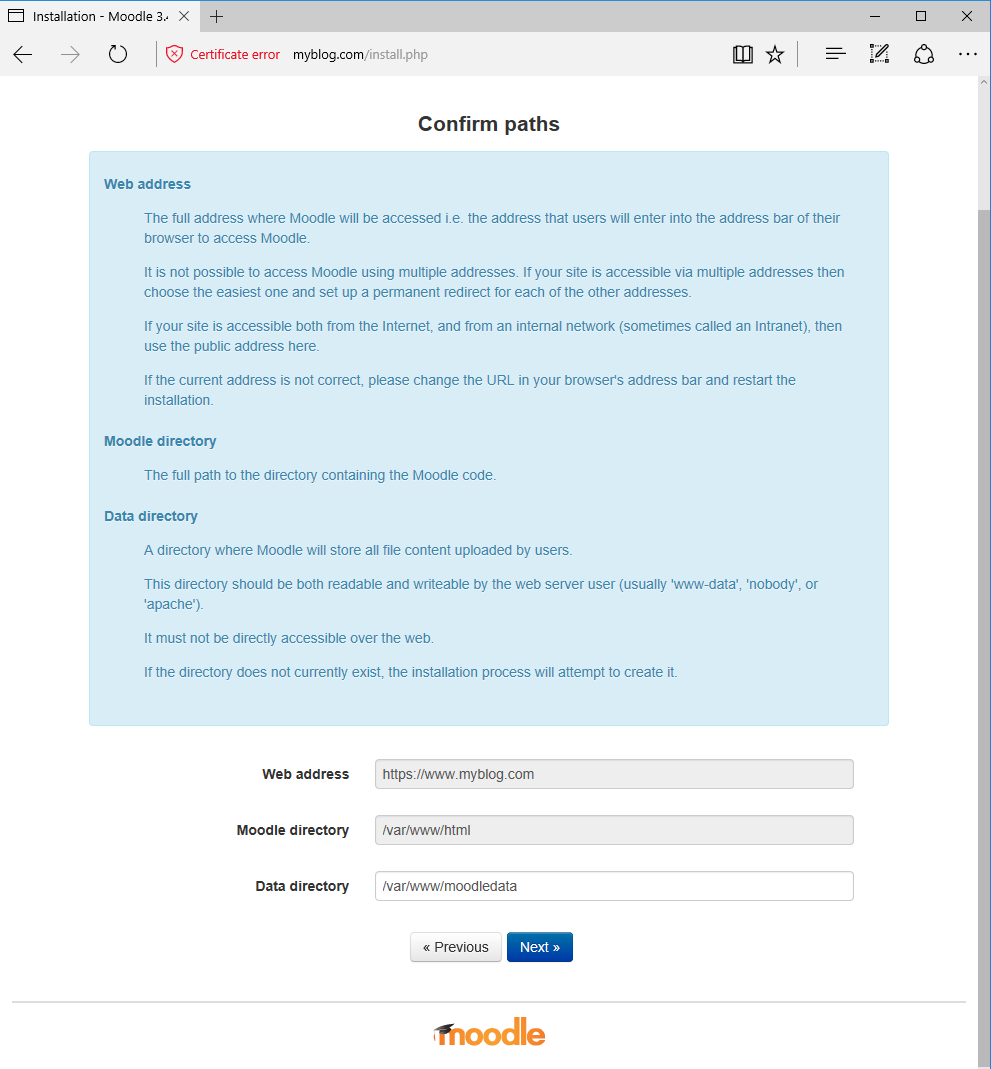
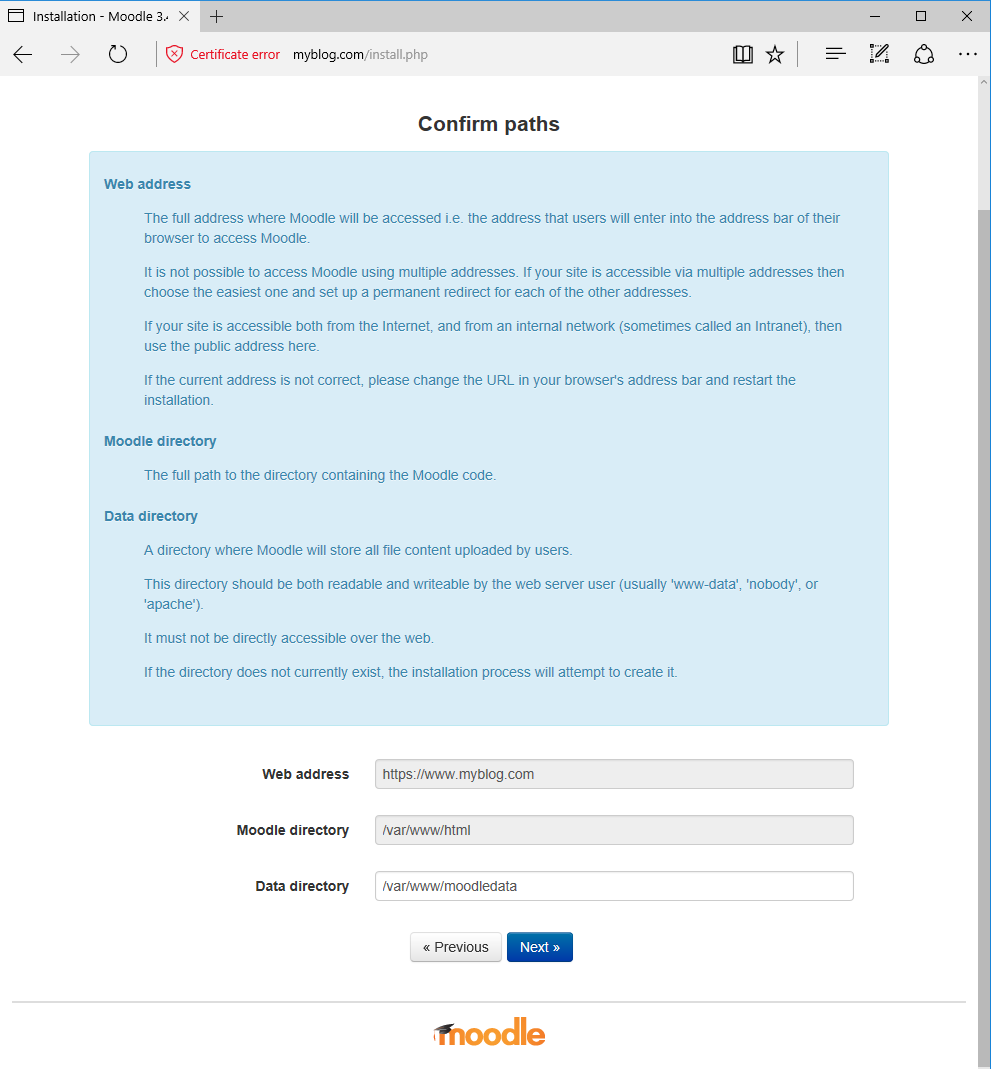
- At the next screen change the Moodle data directory to the appropriate directory
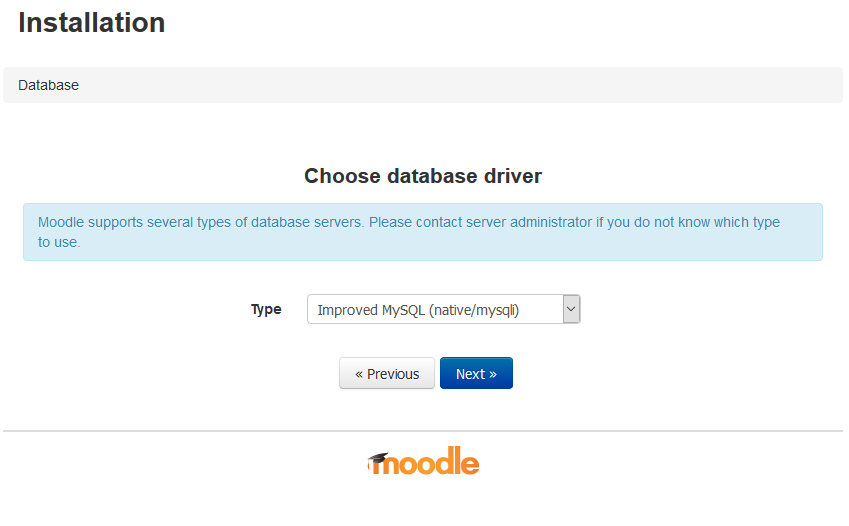
- Select the appropriate database driver
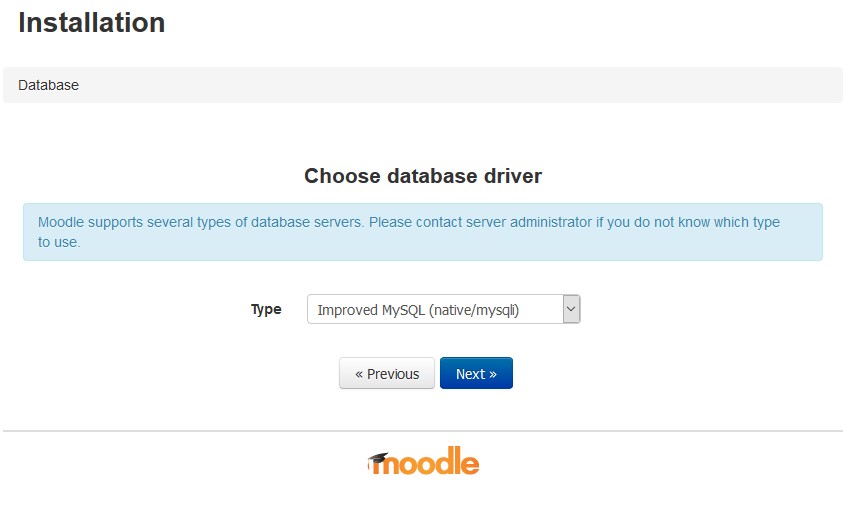
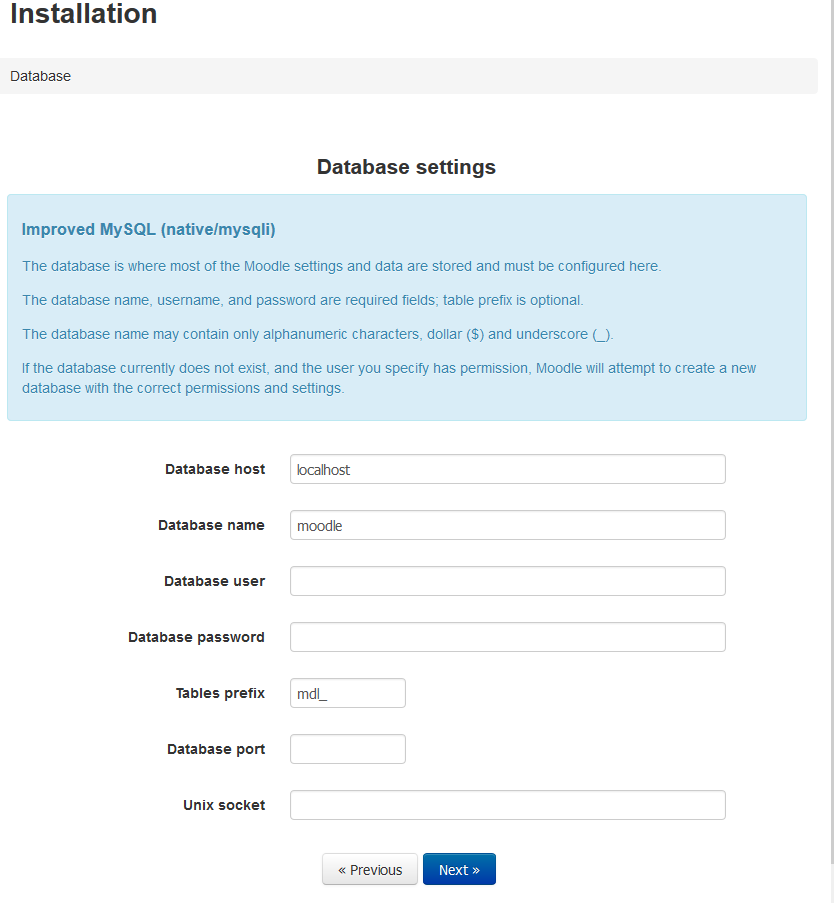
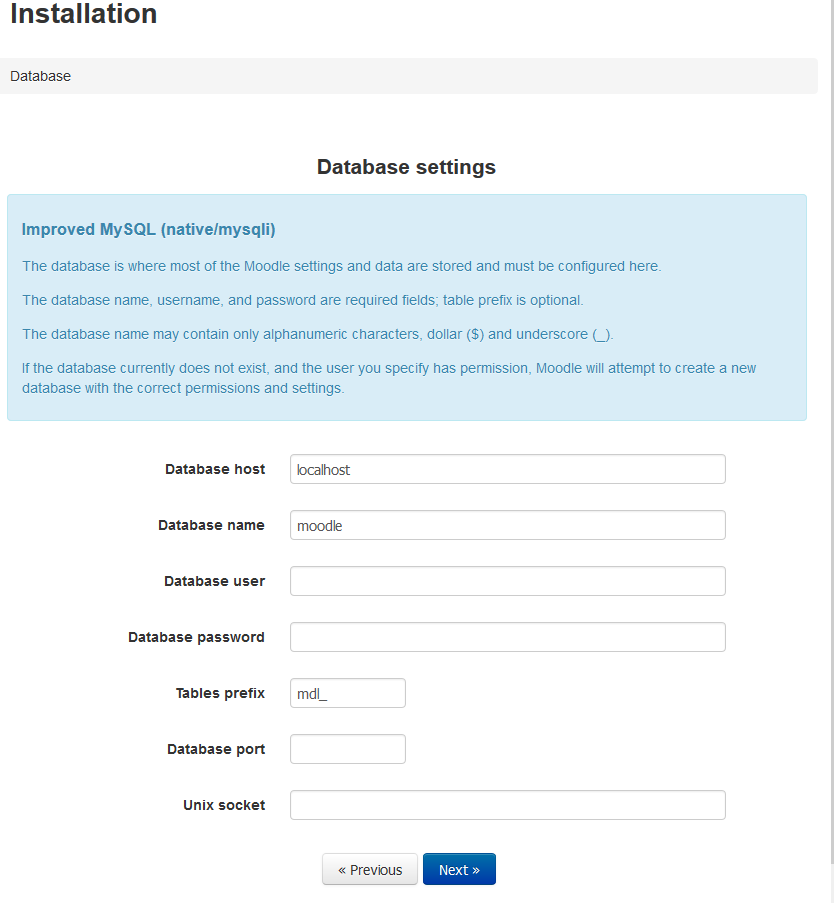
- Enter the database details of the database that was created
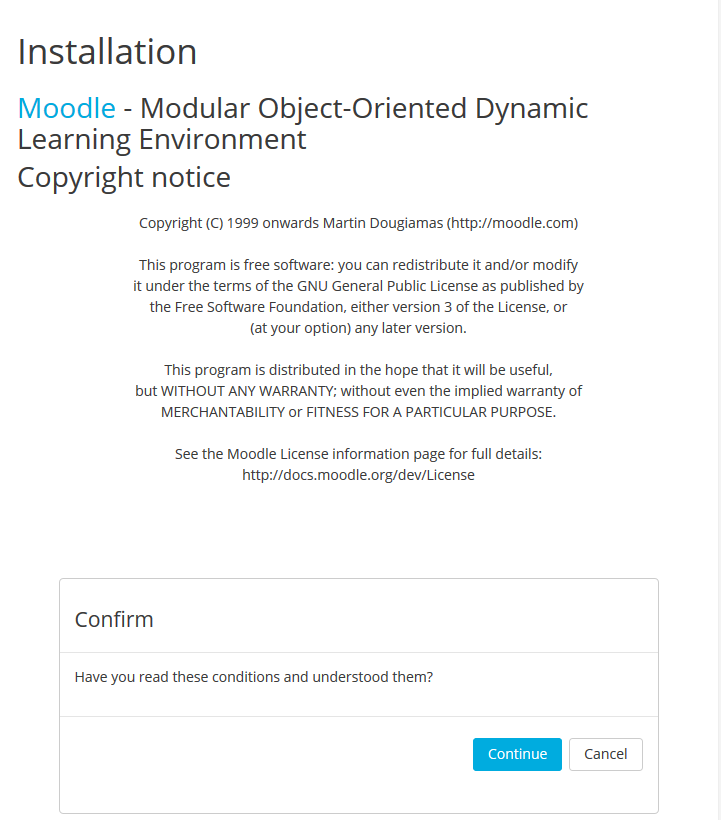
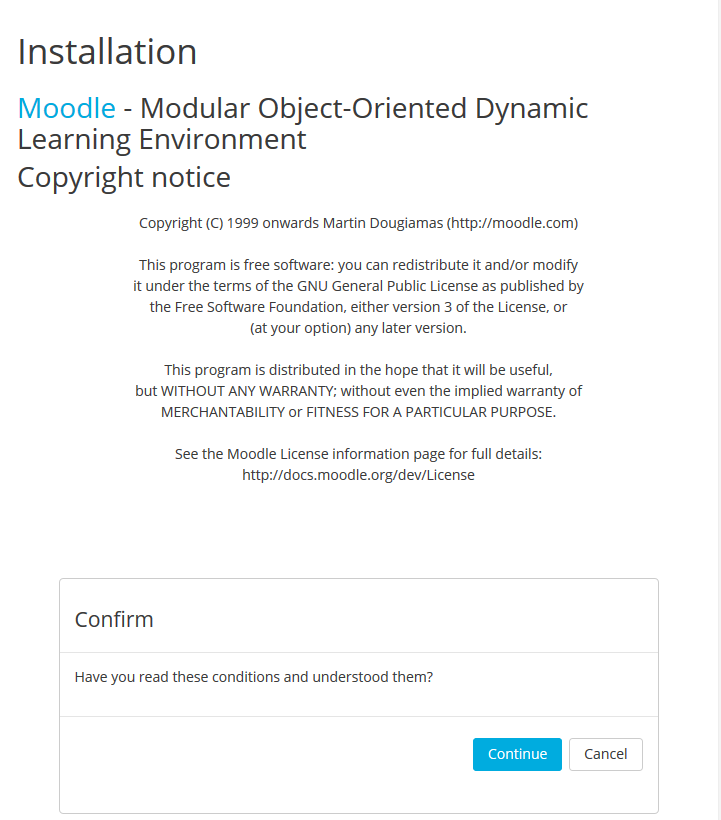
- Now click and wait, after some seconds you should see the conditions, that you should accept
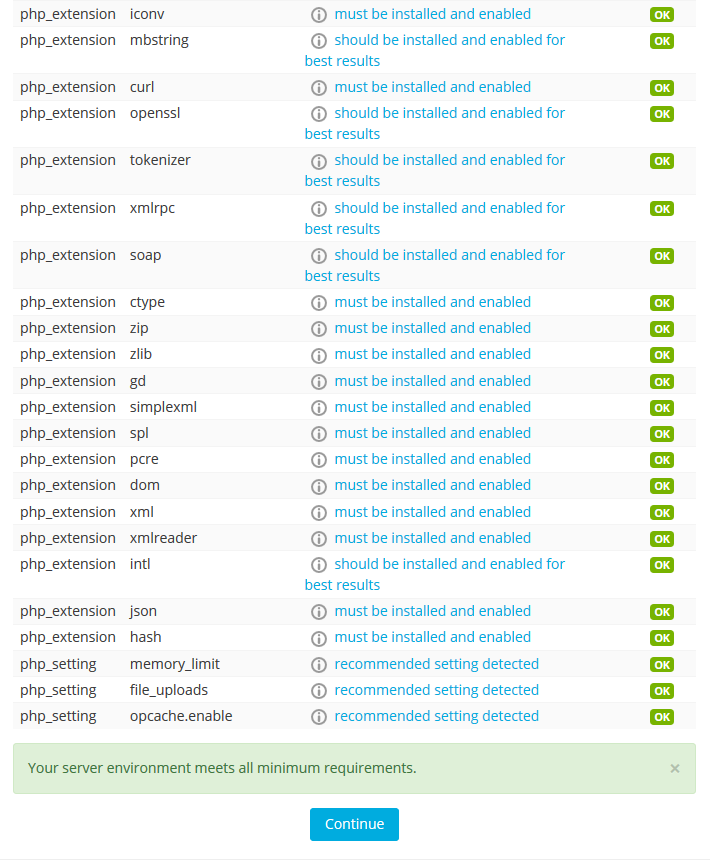
- Moodle will perform some system checks to test that everything is working fine
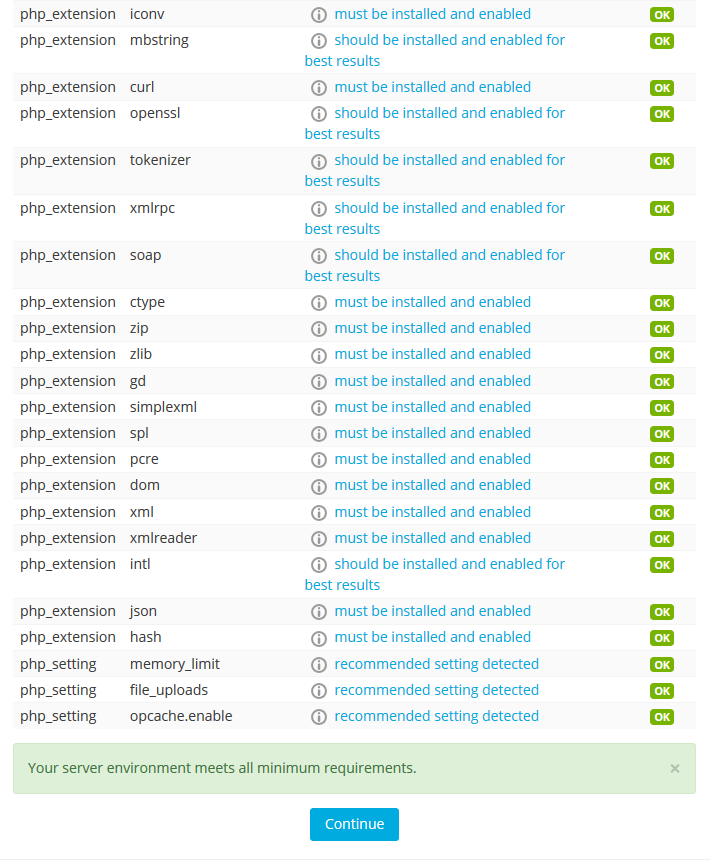
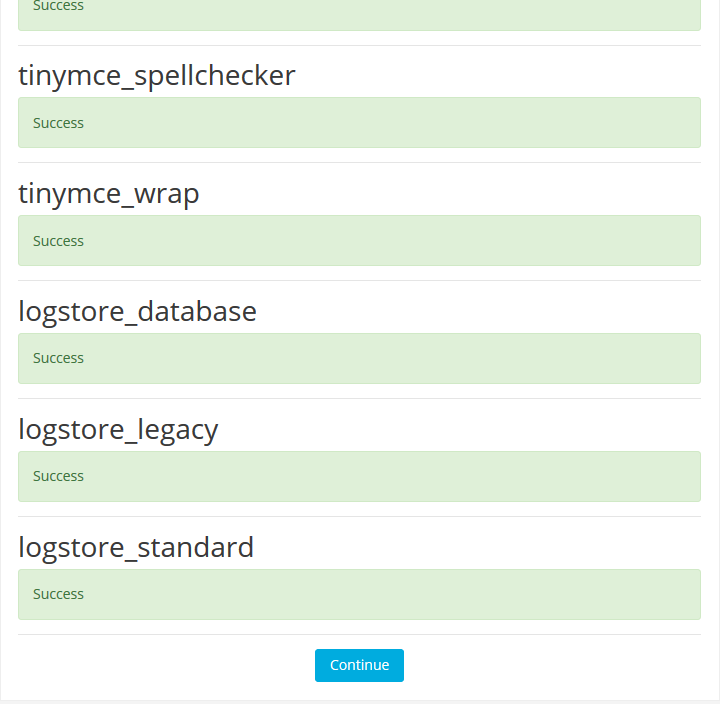
- Click Continue and other checks will come up....
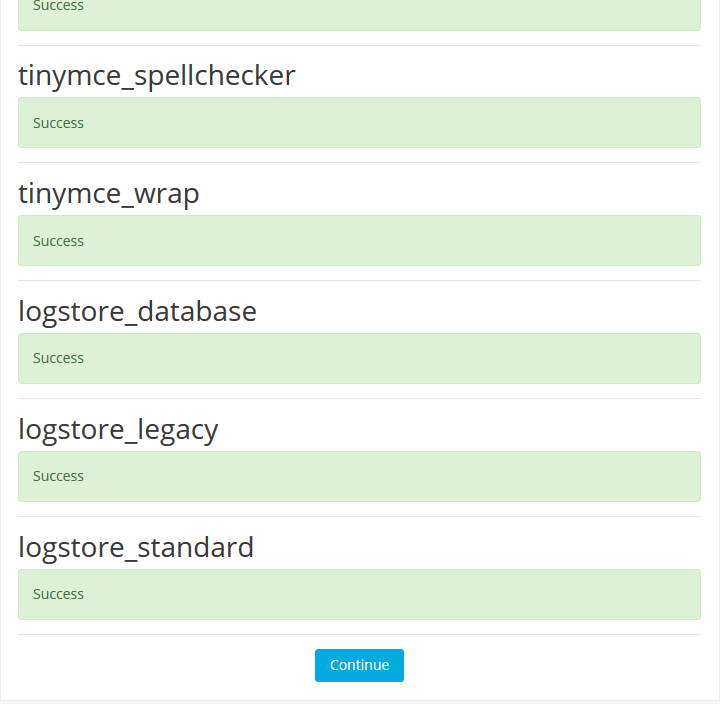
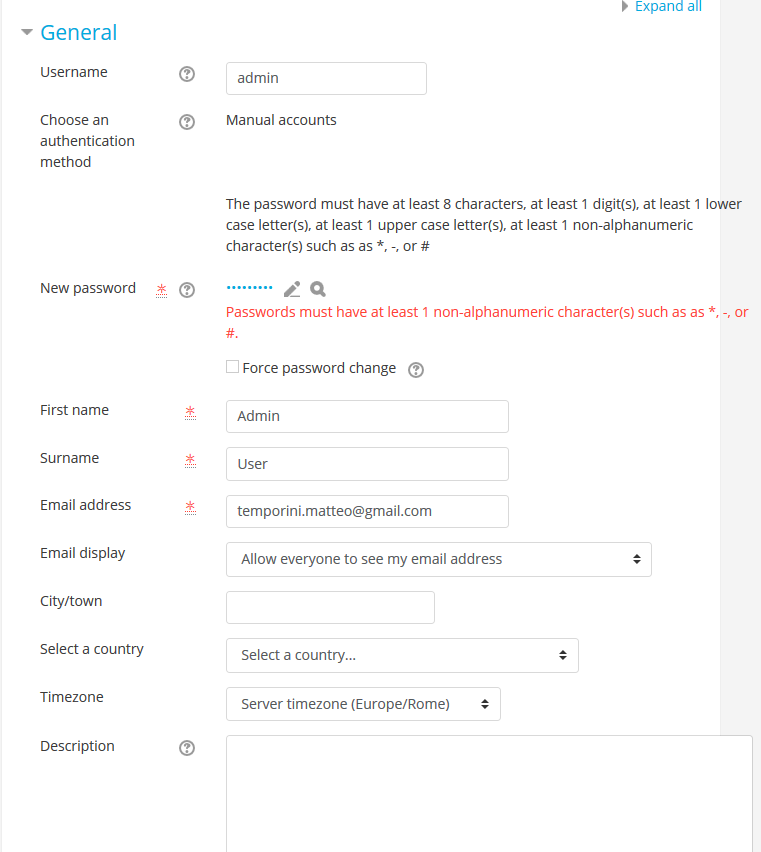
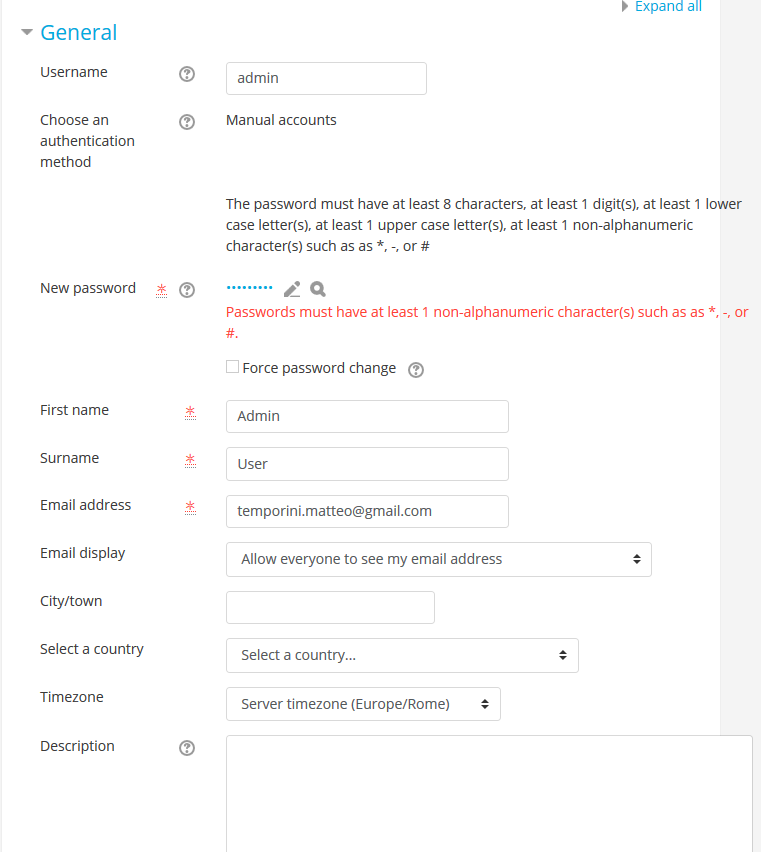
- Click continue fill the data of admin user (Name, First, user password..)
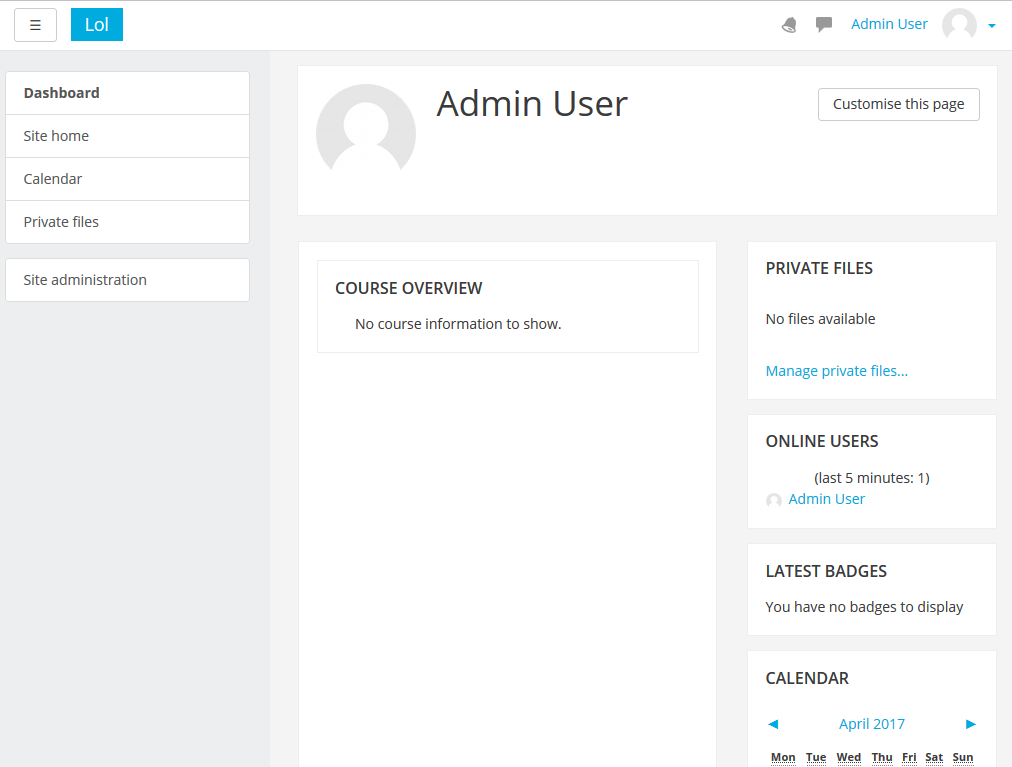
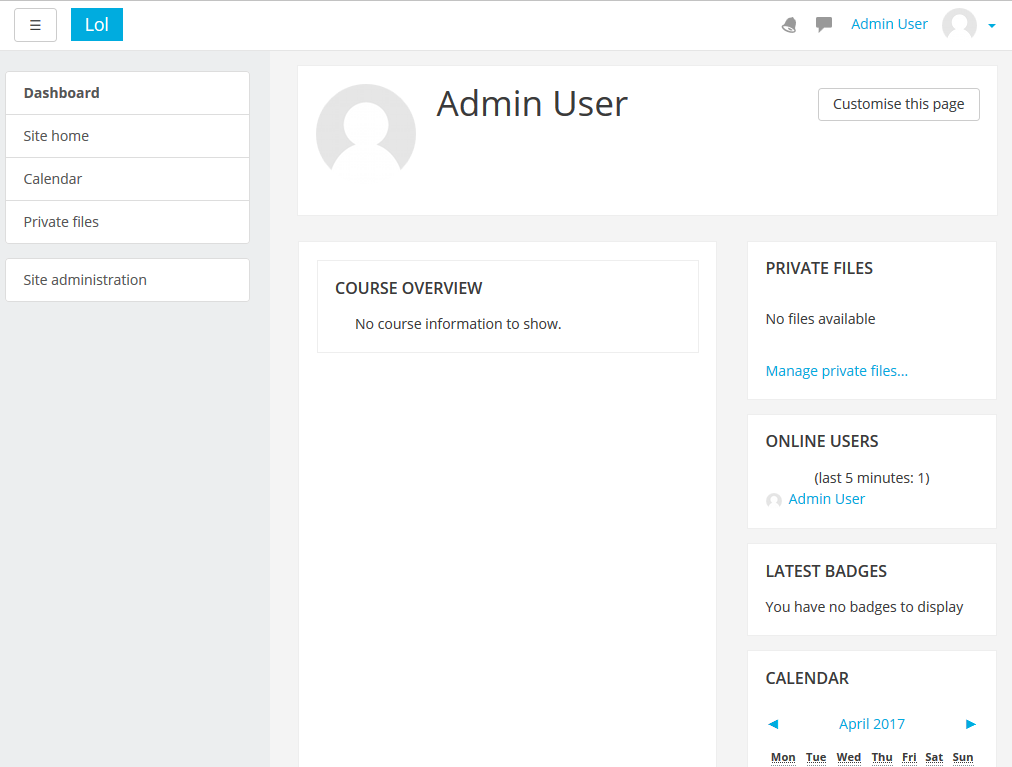
- Finally you will land on the Administrator page