Learner Group Settings
The platform provides the option to group students together for more effective learning.
Group options:
- Group settings can be set per course and per activity
- Visible to all or hidden to non-group members
- Controlled membership or automatically grouped
Settings discussed in this how-to guide control course settings as a whole. Group access can be set in selected activities within the course.
Course Settings / Groups:
Location: Course administration / Edit settings / Groups
Under course settings, the group setting that will apply to the entire course will be set with the following options:
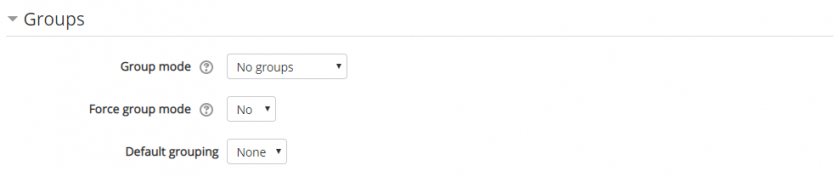
Group mode:
This setting has 3 options:
- No groups
- Separate groups - Each group member can only see their own group, others are invisible
- Visible groups - Each group member works in their own group, but can also see other groups
The group mode defined at course level is the default mode for all activities within the course. Each activity that supports groups can also define its own group mode, though if the group mode is forced at course level, the group mode setting for each activity is ignored.
Force group mode:
If group mode is forced, then the course group mode is applied to every activity in the course. Group mode settings in each activity are then ignored.
User Settings / Groups:
Location: Course administration / users / Groups
Learners can be added to groups automatically upon enrolment or added to a specific group, manually by a teacher or course manager.
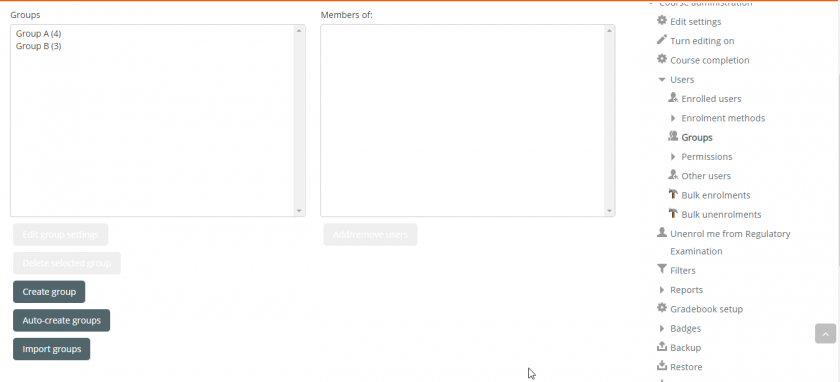
Auto-Create Groups
- Click to "Auto-create groups" and complete the required information.
- Choose your preferred naming scheme.
- Select whether groups should be limited to a set number of learners per group or a set number of groups per course.
- Set "Select members with role" to "Students"
- Choose your preferred allocation method of members
- Ensure the "include only active enrolments" option is ticked.
You can choose to preview your settings to ensure accuracy and save once approved.
Groups will now appear on the Groups page.
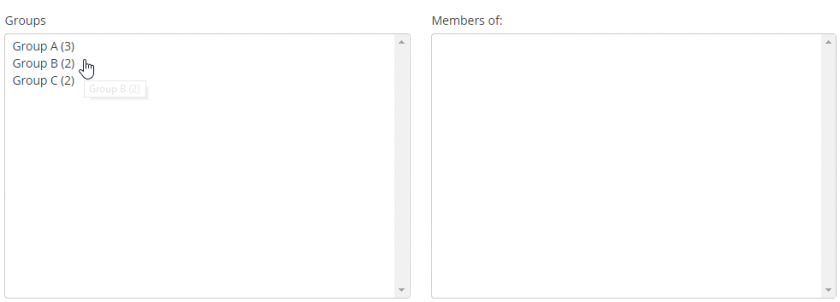
Naming scheme:
The at symbol (@) may be used to create groups with names containing letters. For example Group @ will generate groups named Group A, Group B, Group C, ...
The hash symbol (#) may be used to create groups with names containing numbers. For example Group # will generate groups named Group 1, Group 2, Group 3, ...
Group / Member count:
Groups can be limited to:
- A number of users per group or.
- A number of groups per course.
Select members with role:
Students, teachers and course creators can be included in groups.
If the purpose of the group is to facilitate effective learning or serve as a study group, choose to include only students in the auto-grouping setting to ensure that the groups consist of students mostly.
Teachers can then be manually added to required groups.
Allocate members:
Members can be allocated:
- At random
- Alphabetically by first name, last name
- Alphabetically by last name, first name
- Alphabetically by ID number
Manually Create a Group:
- Click to "Create groups"
- Insert the group name
- You may add a group description explaining the purpose of the group - Ideal for teachers or course designers who are required to work together on a course
- The group and course enrolment can be restricted by enabling and inserting an enrolment key (password) allowing only those who have the enrolment key to enrol and join the group
- Activate "Group messaging"
- Upload a group picture (Optional)
- Save your changes
The Group will now appear on the Groups page and users may be included or will be included upon enrolment.
Group messaging:
If enabled, group members can send messages to the others in their group via the messaging drawer.
Enrolment key:
An enrolment key enables access to the course to be restricted to only those who know the key. If a group enrolment key is specified, then not only will entering that key let the user into the course, but it will also automatically make them a member of this group.
Note: Group enrolment keys must be enabled in the self enrolment settings and an enrolment key for the course must also be specified.
Add (or remove) learners to Groups
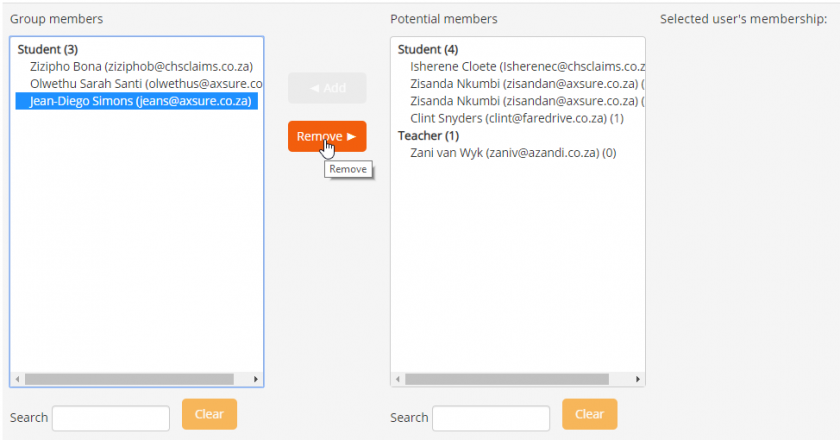
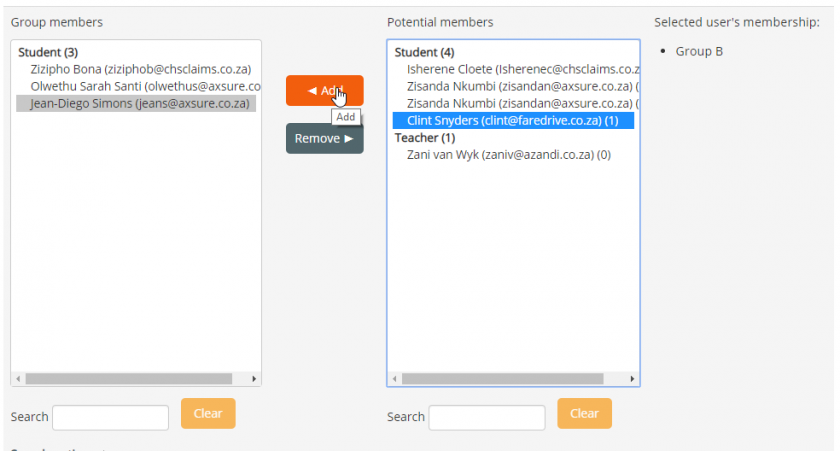
Learners can manually be added to automatically created or manually created groups.
Location: Course administration / users / Groups
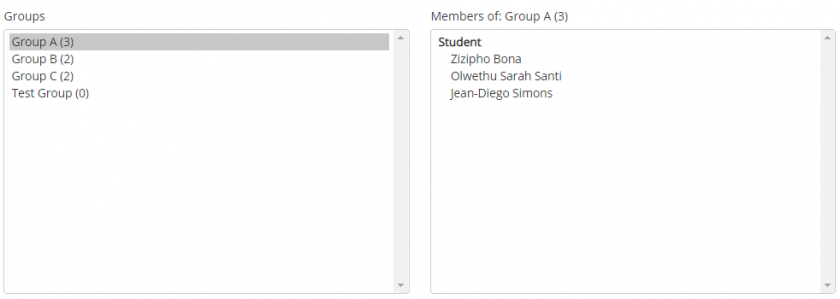
- Select the group to which a learner needs to be added (or removed)
- Click to "add/remove users"
- Select the user you wish to add or remove and select the appropriate option
Groupings of groups
Groups can be grouped together using the grouping settings.
This can be used where students and teachers work together to review course content, or multiple selected groups need to work together within a course.
To create groupings:
- Go to the Groupings tab
- Select "create grouping" and complete the information required
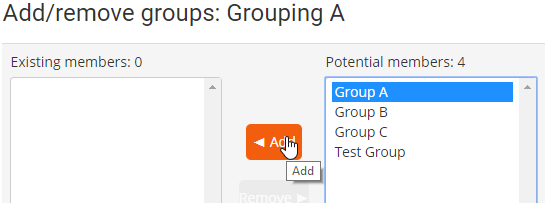
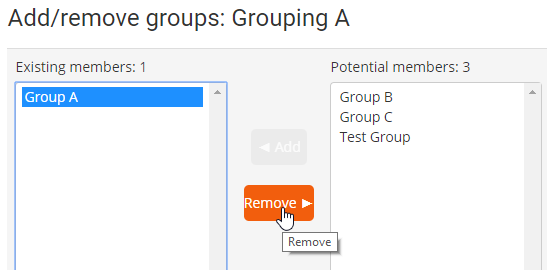
- Click on the members icon displayed to the right of the grouping name to add groups as members