# User Tour Customisation

Guide to customise user tours including a checklist for ease of use.

# Dashboard Tour

When activated / visible the Dashboard Tour will be displayed when the learner first visits "My Dashboard" on the learning platform.

### Customisation options of the Dashboard Tour

Multiple tour windows can be inserted to enhance learner experience and explain or point out platform features.

The list below can be used as a guide to build and customise your user tour:

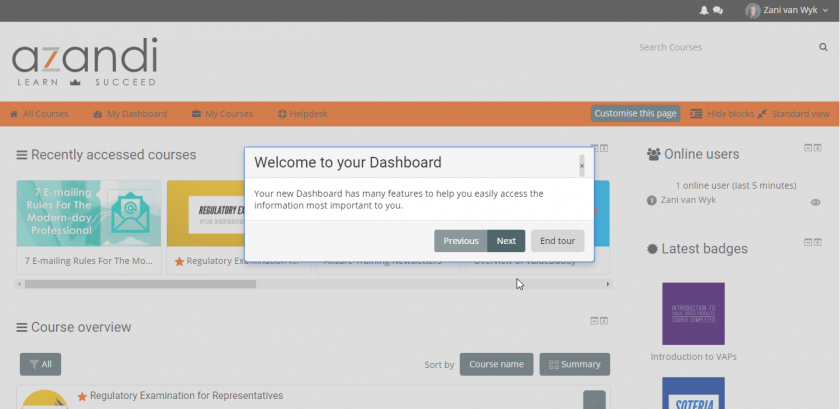
<table border="1" id="bkmrk-tour-window-display-" style="border-collapse: collapse; width: 99.9999%; height: 220px;"><tbody><tr style="height: 31px;"><td style="width: 26.7901%; height: 31px;">**Tour window display location**</td><td style="width: 36.1728%; height: 31px;">**Best Use**</td><td style="width: 37.037%; height: 31px;">**Preview**</td></tr><tr style="height: 31px;"><td style="width: 26.7901%; height: 31px;">Middle of the page</td><td style="width: 36.1728%; height: 31px;">Ideal for general site or provider related information.

</td><td style="width: 37.037%; height: 31px;">![](https://docs.azandi.co.za/uploads/images/gallery/2019-05-May/scaled-840-0/image-1557236221504.png)

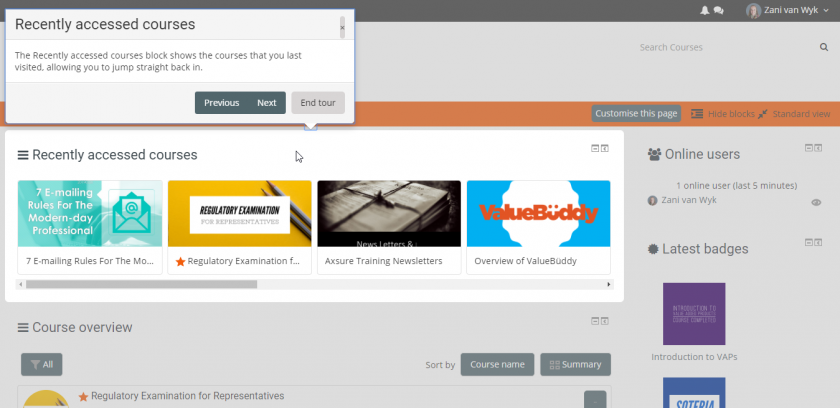
</td></tr><tr style="height: 31px;"><td style="width: 26.7901%; height: 31px;">Recently accessed courses block</td><td style="width: 36.1728%; height: 31px;">Providing information specifically relating to the Timeline block displayed on the Dashboard.</td><td style="width: 37.037%; height: 31px;">![](https://docs.azandi.co.za/uploads/images/gallery/2019-05-May/scaled-840-0/image-1557236259281.png)

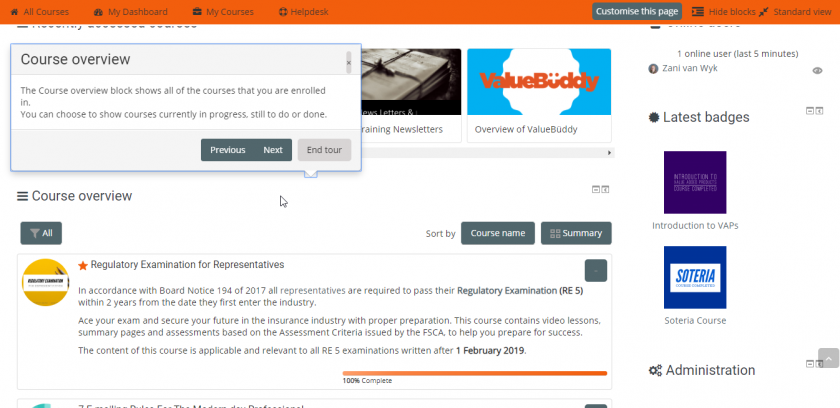
</td></tr><tr style="height: 31px;"><td style="width: 26.7901%; height: 31px;">Course overview block</td><td style="width: 36.1728%; height: 31px;">Providing information specifically relating to the Course Overview block displayed on the Dashboard.</td><td style="width: 37.037%; height: 31px;">![](https://docs.azandi.co.za/uploads/images/gallery/2019-05-May/scaled-840-0/image-1557236305291.png)

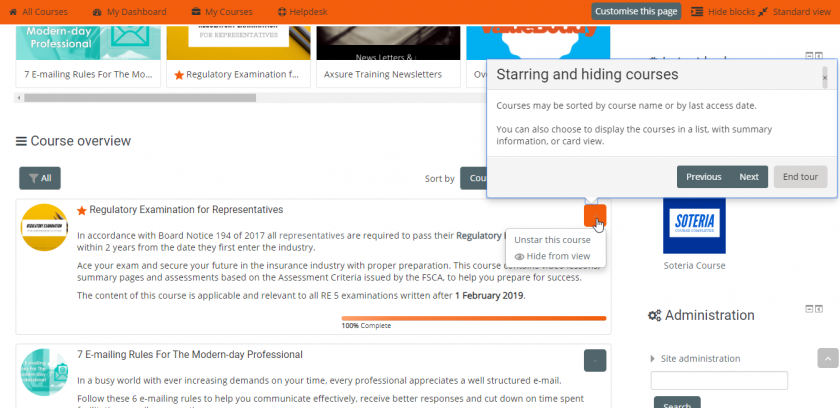
</td></tr><tr style="height: 34px;"><td style="width: 26.7901%; height: 34px;">Star / Hide button</td><td style="width: 36.1728%; height: 34px;">Providing information on the star and hide functionality on the Dashboard.</td><td style="width: 37.037%; height: 34px;">![](https://docs.azandi.co.za/uploads/images/gallery/2019-05-May/scaled-840-0/image-1557236429568.png)

</td></tr><tr style="height: 31px;"><td style="width: 26.7901%; height: 31px;">View selector button</td><td style="width: 36.1728%; height: 31px;">Providing guidance on the various view and display options available to the learner.</td><td style="width: 37.037%; height: 31px;">![](https://docs.azandi.co.za/uploads/images/gallery/2019-05-May/scaled-840-0/image-1557236556421.png)

</td></tr></tbody></table>

# Message System Tour

When activated a once-off tour will be displayed when a learner views their first course.

### Customisation options of the Message System Tour

Multiple tour windows can be inserted to enhance learner experience and explain or point out platform features.

The following Message System Tour locations are available:

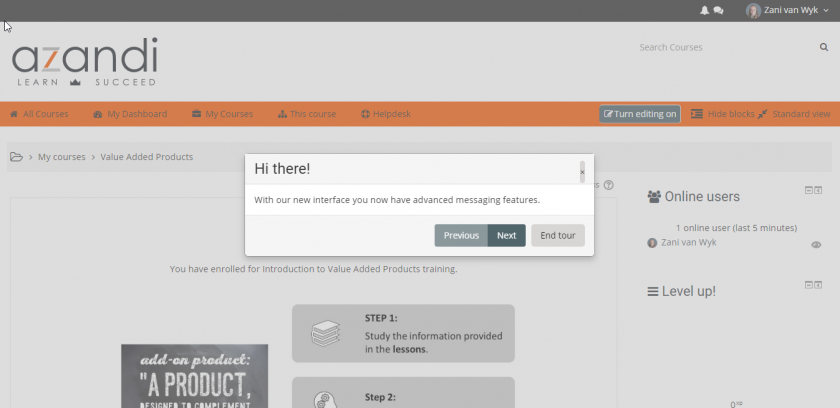
<table border="1" id="bkmrk-location%3A-preview%3A-m" style="border-collapse: collapse; width: 100%; height: 103px;"><tbody><tr style="height: 31px;"><td style="width: 43.0864%; height: 31px;">**Location:**</td><td style="width: 56.9136%; height: 31px;">**Preview:**</td></tr><tr style="height: 31px;"><td style="width: 43.0864%; height: 31px;">Middle of the page

</td><td style="width: 56.9136%; height: 31px;">![](https://docs.azandi.co.za/uploads/images/gallery/2019-05-May/scaled-840-0/image-1557240104242.png)

</td></tr><tr style="height: 207px;"><td style="width: 43.0864%; height: 10px;">Message icon (Message drawer toggle)

</td><td style="width: 56.9136%; height: 10px;">![](https://docs.azandi.co.za/uploads/images/gallery/2019-05-May/scaled-840-0/image-1557240123599.png)

</td></tr><tr style="height: 31px;"><td style="width: 43.0864%; height: 31px;">Group message option

</td><td style="width: 56.9136%; height: 31px;">![](https://docs.azandi.co.za/uploads/images/gallery/2019-05-May/scaled-840-0/image-1557240162975.png)

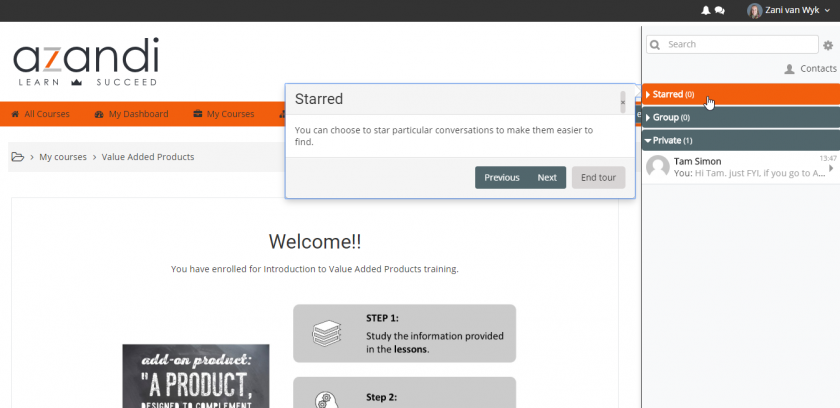
</td></tr><tr><td style="width: 43.0864%;">Starred message option

</td><td style="width: 56.9136%;">![](https://docs.azandi.co.za/uploads/images/gallery/2019-05-May/scaled-840-0/image-1557240183109.png)

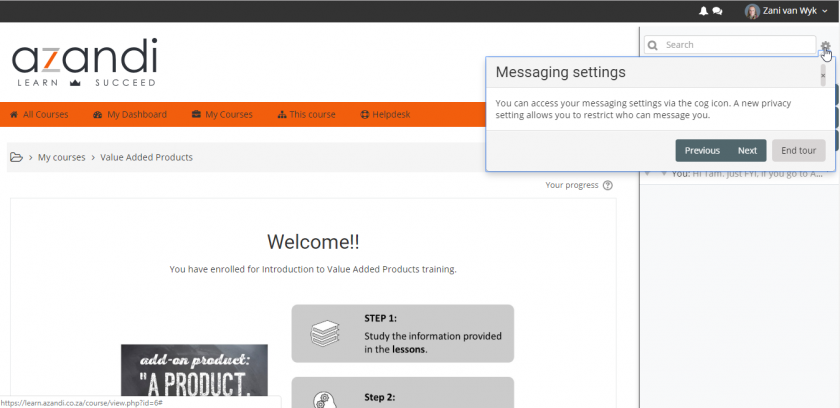
</td></tr><tr><td style="width: 43.0864%;">Message settings icon

</td><td style="width: 56.9136%;">![](https://docs.azandi.co.za/uploads/images/gallery/2019-05-May/scaled-840-0/image-1557240197249.png)

</td></tr></tbody></table>

# Client Tour Customisation Checklist

## Messaging system tour setup:

<table border="1" id="bkmrk-activate%3F-yes-no%2C-ma" style="border-collapse: collapse; width: 100%;"><tbody><tr><td style="width: 33.3333%;">Activate?</td><td style="width: 33.3333%;">Yes</td><td style="width: 33.3333%;">No, maybe later</td></tr></tbody></table>

Complete the table below for tour setup:

<table border="1" id="bkmrk-slide-number-title-c" style="border-collapse: collapse; width: 100%; height: 322px;"><tbody><tr style="height: 49px;"><td style="width: 10.4321%; height: 49px;">**Slide Number**</td><td style="width: 23.0247%; height: 49px;">**Title**</td><td style="width: 41.5432%; height: 49px;">**Content**</td><td style="width: 25%; height: 49px;">**Target (Display location)**</td></tr><tr style="height: 31px;"><td style="width: 10.4321%; height: 31px;">1</td><td style="width: 23.0247%; height: 31px;"></td><td style="width: 41.5432%; height: 31px;"> </td><td style="width: 25%; height: 31px;"> </td></tr><tr style="height: 87px;"><td style="width: 10.4321%; height: 87px;">2</td><td style="width: 23.0247%; height: 87px;"></td><td style="width: 41.5432%; height: 87px;"> </td><td style="width: 25%; height: 87px;"> </td></tr><tr style="height: 31px;"><td style="width: 10.4321%; height: 31px;">3</td><td style="width: 23.0247%; height: 31px;"></td><td style="width: 41.5432%; height: 31px;"> </td><td style="width: 25%; height: 31px;"> </td></tr><tr style="height: 31px;"><td style="width: 10.4321%; height: 31px;">4</td><td style="width: 23.0247%; height: 31px;"></td><td style="width: 41.5432%; height: 31px;"> </td><td style="width: 25%; height: 31px;"> </td></tr><tr style="height: 31px;"><td style="width: 10.4321%; height: 31px;">5</td><td style="width: 23.0247%; height: 31px;"></td><td style="width: 41.5432%; height: 31px;"> </td><td style="width: 25%; height: 31px;"> </td></tr><tr style="height: 31px;"><td style="width: 10.4321%; height: 31px;">6</td><td style="width: 23.0247%; height: 31px;"></td><td style="width: 41.5432%; height: 31px;"> </td><td style="width: 25%; height: 31px;"> </td></tr><tr style="height: 31px;"><td style="width: 10.4321%; height: 31px;">7</td><td style="width: 23.0247%; height: 31px;"></td><td style="width: 41.5432%; height: 31px;"> </td><td style="width: 25%; height: 31px;"> </td></tr><tr><td style="width: 10.4321%;">8</td><td style="width: 23.0247%;"></td><td style="width: 41.5432%;"> </td><td style="width: 25%;"> </td></tr></tbody></table>

**You may elect to keep the default tour wording, which will display as follow:**

<table border="1" id="bkmrk-slide-number-title-c-0" style="border-collapse: collapse; width: 100%; height: 359px;"><tbody><tr style="height: 49px;"><td style="width: 10.4321%; height: 49px;">**Slide Number**</td><td style="width: 23.0247%; height: 49px;">**Title**</td><td style="width: 41.5432%; height: 49px;">**Content**</td><td style="width: 25%; height: 49px;">**Target (Display location)**</td></tr><tr style="height: 31px;"><td style="width: 10.4321%; height: 31px;">1</td><td style="width: 23.0247%; height: 31px;">New messaging interface

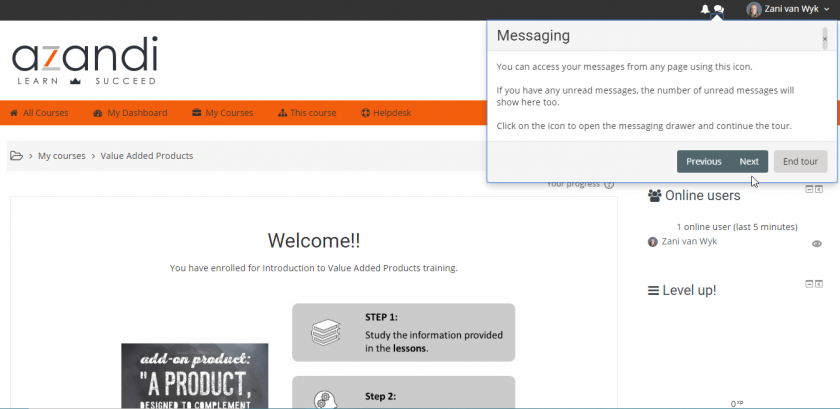
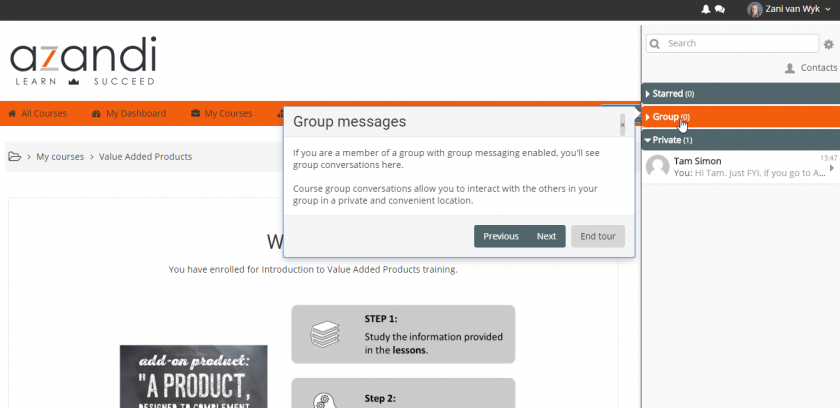
</td><td style="width: 41.5432%; height: 31px;">Moodle 3.6 provides a new interface to messaging, ability for group messaging within a course, along with better control over who can message you.</td><td style="width: 25%; height: 31px;">Display in middle of page</td></tr><tr style="height: 87px;"><td style="width: 10.4321%; height: 87px;">2</td><td style="width: 23.0247%; height: 87px;">Messaging</td><td class="cell c1" id="steps_r1_c1" style="width: 41.5432%; height: 87px;">You can access your messages from any page using this icon. If you have any unread messages, the number of unread messages will show here too. Click on the icon to open the messaging drawer and continue the tour.</td><td class="cell c2" id="steps_r1_c2" style="width: 25%; height: 87px;">Message icon (Message drawer toggle)</td></tr><tr style="height: 31px;"><td style="width: 10.4321%; height: 31px;">3</td><td style="width: 23.0247%; height: 31px;">Group messages</td><td class="cell c1" id="steps_r2_c1" style="width: 41.5432%; height: 31px;">If you are a member of a group with group messaging enabled, you'll see group conversations here. Course group conversations allow you to interact with the others in your group in a private and convenient location.</td><td class="cell c2" id="steps_r2_c2" style="width: 25%; height: 31px;">Group message option</td></tr><tr style="height: 31px;"><td style="width: 10.4321%; height: 31px;">4</td><td style="width: 23.0247%; height: 31px;">Starred</td><td class="cell c1" id="steps_r3_c1" style="width: 41.5432%; height: 31px;">You can choose to star particular conversations to make them easier to find.</td><td class="cell c2" id="steps_r3_c2" style="width: 25%; height: 31px;">Starred message option</td></tr><tr style="height: 31px;"><td style="width: 10.4321%; height: 31px;">5</td><td style="width: 23.0247%; height: 31px;">Messaging settings</td><td class="cell c1" id="steps_r4_c1" style="width: 41.5432%; height: 31px;">You can access your messaging settings via the cog icon. A new privacy setting allows you to restrict who can message you.</td><td class="cell c2" id="steps_r4_c2" style="width: 25%; height: 31px;">Message settings icon</td></tr><tr style="height: 31px;"><td style="width: 10.4321%; height: 31px;">6</td><td style="width: 23.0247%; height: 31px;">End of tour</td><td class="cell c1" id="steps_r5_c1" style="width: 41.5432%;">This is the end of your user tour. It won't show again unless you reset it using the link in the footer.</td><td class="cell c2" id="steps_r5_c2" style="width: 25%;">Display in middle of page</td></tr></tbody></table>

## Dashboard tour setup:

<table border="1" id="bkmrk-activate%3F-yes-no%2C-ma-0" style="border-collapse: collapse; width: 100%;"><tbody><tr><td style="width: 33.3333%;">Activate?</td><td style="width: 33.3333%;">Yes</td><td style="width: 33.3333%;">No, maybe later</td></tr></tbody></table>

Complete the table below for tour setup:

<table border="1" id="bkmrk-slide-number-title-c-1" style="border-collapse: collapse; width: 100%; height: 322px;"><tbody><tr style="height: 49px;"><td style="width: 10.4321%; height: 49px;">**Slide Number**</td><td style="width: 23.0247%; height: 49px;">**Title**</td><td style="width: 41.5432%; height: 49px;">**Content**</td><td style="width: 25%; height: 49px;">**Target (Display location)**</td></tr><tr style="height: 31px;"><td style="width: 10.4321%; height: 31px;">1</td><td style="width: 23.0247%; height: 31px;"></td><td style="width: 41.5432%; height: 31px;"> </td><td style="width: 25%; height: 31px;"> </td></tr><tr style="height: 87px;"><td style="width: 10.4321%; height: 87px;">2</td><td style="width: 23.0247%; height: 87px;"></td><td style="width: 41.5432%; height: 87px;"> </td><td style="width: 25%; height: 87px;"> </td></tr><tr style="height: 31px;"><td style="width: 10.4321%; height: 31px;">3</td><td style="width: 23.0247%; height: 31px;"></td><td style="width: 41.5432%; height: 31px;"> </td><td style="width: 25%; height: 31px;"> </td></tr><tr style="height: 31px;"><td style="width: 10.4321%; height: 31px;">4</td><td style="width: 23.0247%; height: 31px;"></td><td style="width: 41.5432%; height: 31px;"> </td><td style="width: 25%; height: 31px;"> </td></tr><tr style="height: 31px;"><td style="width: 10.4321%; height: 31px;">5</td><td style="width: 23.0247%; height: 31px;"></td><td style="width: 41.5432%; height: 31px;"> </td><td style="width: 25%; height: 31px;"> </td></tr><tr style="height: 31px;"><td style="width: 10.4321%; height: 31px;">6</td><td style="width: 23.0247%; height: 31px;"></td><td style="width: 41.5432%; height: 31px;"> </td><td style="width: 25%; height: 31px;"> </td></tr><tr style="height: 31px;"><td style="width: 10.4321%; height: 31px;">7</td><td style="width: 23.0247%; height: 31px;"></td><td style="width: 41.5432%; height: 31px;"> </td><td style="width: 25%; height: 31px;"> </td></tr><tr><td style="width: 10.4321%;">8</td><td style="width: 23.0247%;"></td><td style="width: 41.5432%;"> </td><td style="width: 25%;"> </td></tr></tbody></table>

**You may elect to keep the default tour wording, which will display as follow:**

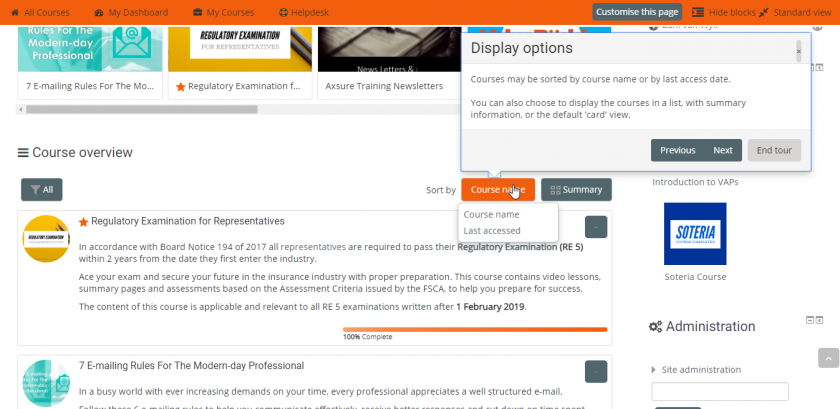
<table border="1" id="bkmrk-slide-number-title-c-2" style="border-collapse: collapse; width: 100%; height: 291px;"><tbody><tr style="height: 49px;"><td style="width: 10.4321%; height: 49px;">**Slide Number**</td><td style="width: 23.0247%; height: 49px;">**Title**</td><td style="width: 41.5432%; height: 49px;">**Content**</td><td style="width: 25%; height: 49px;">**Target (Display location)**</td></tr><tr style="height: 31px;"><td style="width: 10.4321%; height: 31px;">1</td><td style="width: 23.0247%; height: 31px;">Your Dashboard</td><td class="cell c1" id="steps_r0_c1" style="width: 41.5432%; height: 31px;">Your new Dashboard has many features to help you easily access the information most important to you.</td><td class="cell c2" id="steps_r0_c2" style="width: 25%; height: 31px;">Display in middle of page</td></tr><tr style="height: 87px;"><td style="width: 10.4321%; height: 25px;">2</td><td style="width: 23.0247%; height: 25px;">Your Dashboard</td><td class="cell c1" id="steps_r1_c1" style="width: 41.5432%; height: 25px;">The Timeline block shows your important upcoming events. You can choose to show activities in the next week, month, or further into the future. You can also show items which are overdue.</td><td class="cell c2" id="steps_r1_c2" style="width: 25%; height: 25px;">Block named 'Timeline'</td></tr><tr style="height: 31px;"><td style="width: 10.4321%; height: 31px;">3</td><td style="width: 23.0247%; height: 31px;">Recently accessed courses</td><td class="cell c1" id="steps_r2_c1" style="width: 41.5432%; height: 31px;">The Recently accessed courses block shows the courses that you last visited, allowing you to jump straight back in.</td><td class="cell c2" id="steps_r2_c2" style="width: 25%; height: 31px;">Block named 'Recently accessed courses'</td></tr><tr style="height: 31px;"><td style="width: 10.4321%; height: 31px;">4</td><td style="width: 23.0247%; height: 31px;">Course overview</td><td class="cell c1" id="steps_r3_c1" style="width: 41.5432%; height: 31px;">The Course overview block shows all of the courses that you are enrolled in. You can choose to show courses currently in progress, or in the past or the future, or courses which you have starred.</td><td class="cell c2" id="steps_r3_c2" style="width: 25%; height: 31px;">Block named 'Course overview'</td></tr><tr style="height: 31px;"><td style="width: 10.4321%; height: 31px;">5</td><td style="width: 23.0247%; height: 31px;">Starring and hiding courses</td><td class="cell c1" id="steps_r4_c1" style="width: 41.5432%; height: 31px;">You can choose to star a course to make it stand out, or hide a course which is no longer important to you. These actions only affect your view. You can also choose to display the courses in a list, or with summary information, or the default 'card' view.</td><td class="cell c2" id="steps_r4_c2" style="width: 25%; height: 31px;">Star / Hide button</td></tr><tr style="height: 31px;"><td style="width: 10.4321%; height: 31px;">6</td><td style="width: 23.0247%; height: 31px;">Starring and hiding courses</td><td class="cell c1" id="steps_r5_c1" style="width: 41.5432%; height: 31px;">You can choose to star a course to make it stand out, or hide a course which is no longer important to you. These actions only affect your view. You can also choose to display the courses in a list, or with summary information, or the default 'card' view.</td><td class="cell c2" id="steps_r5_c2" style="width: 25%; height: 31px;">Star / Hide button</td></tr><tr style="height: 31px;"><td style="width: 10.4321%; height: 31px;">7</td><td style="width: 23.0247%; height: 31px;">Display options</td><td class="cell c1" id="steps_r6_c1" style="width: 41.5432%;">Courses may be sorted by course name or by last access date. You can also choose to display the courses in a list, with summary information, or the default 'card' view.</td><td class="cell c2" id="steps_r6_c2" style="width: 25%;">View selector button</td></tr><tr style="height: 31px;"><td style="width: 10.4321%; height: 31px;">8</td><td style="width: 23.0247%; height: 31px;">End of tour</td><td class="cell c1" id="steps_r7_c1" style="width: 41.5432%;">This is the end of your user tour. It won't show again unless you reset it using the link in the footer.</td><td class="cell c2" id="steps_r7_c2" style="width: 25%;">Display in middle of page</td></tr></tbody></table>