Preparation
Server Image Installation
Server Image Installation
- Browse to konsoleH and log in at Admin level
- Select or search for your Self-Managed server in the Hosting Service tab
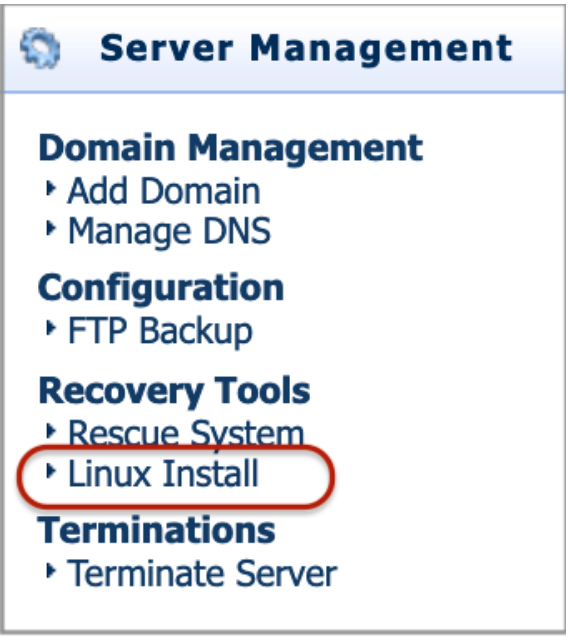
- Select Linux Install under Recovery Tools from the left-hand menu

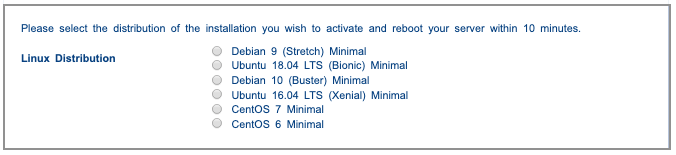
- Select the distribution of the installation that you wish to activate

- Select Activate on the top right-hand side
- Reboot your server within 10 minutes via the RMM / IPMI device
- During the server startup process, you have the option to reconfigure your RAID (TruServ Commerce only) via the RAID controller bios.
- The server will boot into the OS installation environment you selected in step 4
- Follow the onscreen prompts to install your OS and configure your disks and partition layout
- Once the install is complete your server will reboot into your installed OS and will be accessible
- Access your server with the user(s) configured via SSH (some Linux distributions do not allow root logins by default over SSH).
Change the Default Shell
Change the Default Shell
/bin/sh is a symlink to /bin/dash, however we need /bin/bash, not /bin/dash
To change do the following
- Run the command below
dpkg-reconfigure dash - At the prompt type
No
Disable AppArmor And Apport
Disable AppArmor and Apport
Both AppArmor and Apport can can be safely disabled. They cause more problems than solving them
Disable AppArmor
- Run the below commands one after the other
service apparmor stop
update-rc.d -f apparmor remove
apt-get remove apparmor apparmor-utils
Disable Apport
- Run the command below to disable Apport
systemctl disable apport.service