# CentOS Server - Moodle

# Moodle Checklist


# Moodle Checklist

## Moodle Checklist

<table border="1" id="bkmrk-step-%E2%88%9A-to-do-%C2%A0-%C2%A0-pre" style="border-collapse: collapse; width: 100%; height: 532px;"><tbody><tr style="height: 28px;"><td style="width: 10%; height: 28px;"> </td><td style="width: 10%; height: 28px;">√</td><td style="width: 80%; height: 28px;">To Do</td></tr><tr style="height: 68px;"><td style="width: 10%; height: 68px;"> </td><td style="width: 10%; height: 68px;"> </td><td style="width: 80%; height: 68px;">#### Prerequisite

</td></tr><tr style="height: 34px;"><td style="width: 10%; height: 34px;">1</td><td style="width: 10%; height: 34px;"> </td><td style="width: 80%; height: 34px;">[PHP settings](https://docs.azandi.co.za/books/centos-server---moodle/page/php-settings)</td></tr><tr style="height: 34px;"><td style="width: 10%; height: 34px;">2</td><td style="width: 10%; height: 34px;"> </td><td style="width: 80%; height: 34px;">[PHP extensions](https://docs.azandi.co.za/books/centos-server---moodle/page/php-extensions)</td></tr><tr style="height: 29px;"><td style="width: 10%; height: 29px;">3</td><td style="width: 10%; height: 29px;"> </td><td style="width: 80%; height: 29px;">[MySQL settings](https://docs.azandi.co.za/books/centos-server---moodle/page/mysql-settings)</td></tr><tr style="height: 29px;"><td style="width: 10%; height: 29px;">4</td><td style="width: 10%; height: 29px;"> </td><td style="width: 80%; height: 29px;">[MySQL database](https://docs.azandi.co.za/books/centos-server---moodle/page/mysql-database)</td></tr><tr style="height: 29px;"><td style="width: 10%; height: 29px;">5</td><td style="width: 10%; height: 29px;"> </td><td style="width: 80%; height: 29px;">[Folder structure](https://docs.azandi.co.za/books/centos-server---moodle/page/folder-structure)</td></tr><tr style="height: 29px;"><td style="width: 10%; height: 29px;">6</td><td style="width: 10%; height: 29px;"> </td><td style="width: 80%; height: 29px;">[Virtual host file](https://docs.azandi.co.za/books/centos-server---moodle/page/virtual-host-file)</td></tr><tr style="height: 29px;"><td style="width: 10%; height: 29px;">7</td><td style="width: 10%; height: 29px;"> </td><td style="width: 80%; height: 29px;">[SSL Certificate](https://docs.azandi.co.za/books/centos-server---moodle/page/ssl-certificate)</td></tr><tr style="height: 68px;"><td style="width: 10%; height: 68px;"> </td><td style="width: 10%; height: 68px;"> </td><td style="width: 80%; height: 68px;">#### Installation

</td></tr><tr style="height: 29px;"><td style="width: 10%; height: 29px;">8</td><td style="width: 10%; height: 29px;"> </td><td style="width: 80%; height: 29px;">[Installing Moodle](https://docs.azandi.co.za/books/centos-server---moodle/page/installing-moodle)</td></tr><tr style="height: 29px;"><td style="width: 10%; height: 29px;">9</td><td style="width: 10%; height: 29px;"> </td><td style="width: 80%; height: 29px;">[Adding plugins](https://docs.azandi.co.za/books/centos-server---moodle/page/adding-plugins)</td></tr><tr style="height: 68px;"><td style="width: 10%; height: 68px;"> </td><td style="width: 10%; height: 68px;"> </td><td style="width: 80%; height: 68px;">#### Post Installation

</td></tr><tr style="height: 29px;"><td style="width: 10%; height: 29px;">10</td><td style="width: 10%; height: 29px;"> </td><td style="width: 80%; height: 29px;">[Cron (automatic tasks) setup](https://docs.azandi.co.za/books/centos-server---moodle/page/cron-%28automatic-tasks%29-setup)</td></tr></tbody></table>

# Prerequisite


# PHP Settings

### Settings

1. Check and set these settings in your php.ini

```
memory_limit
============

memory_limit = 128M

session.save_handler
====================

session.save_handler = files

file_uploads
============

file_uploads = On

session.auto_start
==================

session.auto_start = 0


post_max_size and upload_max_filesize
=====================================

post_max_size = 500M
upload_max_filesize = 500M
```

#### Restart Server

1. Restart the web server after setting the above settings  
      
    `systemctl restart httpd.service`

# PHP Extensions

### PHP Extensions

1. Install the below list of PHP extensions with the command below (a lot of these extensions are installed by default when installing PHP). See [Install PHP](https://docs.azandi.co.za/books/centos-server---server-applications/page/install-php) on how to install PHP.

- - - The **iconv** extension
        - The **mbstring** extension
        - The **curl** extension
        - The **openssl** extension
        - The **tokenizer** extension
        - The **xmlrpc** extension
        - The **soap** extension
        - The **ctype** extension
        - The **zip** extension
        - The **gd** extension
        - The **simplexml** extension
        - The **spl** extension
        - The **pcre** extension
        - The **dom** extension
        - The **xml** extension
        - The **intl** extension
        - The **json** extension

```null
yum install php-mbstring curl php-xmlrpc php-soap php-gd php-xml php-intl php-json
```

# MySQL Settings

### MySQL settings

#### Adding the configuration settings

1. Open my.cnf file  
      
    `vi /etc/my.cnf`
2. Add the below config settings to the end of the file

```
[client]
default-character-set = utf8mb4

[mysqld]
innodb_file_format = Barracuda
innodb_file_per_table = 1
innodb_large_prefix

character-set-server = utf8mb4
collation-server = utf8mb4_unicode_ci
skip-character-set-client-handshake

[mysql]
default-character-set = utf8mb4
```

#### Restart the MySQL daemon

1. Restart the MySQL daemon after adding the configuration changes

```
systemctl restart mysqld
```

# MySQL Database

### Setting up the MySQL Database

1. Log into MySQL as root, providing the password at the prompt  
      
    `mysql -u root -p`
2. Create the database with the command below  
      
    `CREATE DATABASE moodle DEFAULT CHARACTER SET utf8mb4 COLLATE utf8mb4_unicode_ci;`
3. Create a user/password combination with appropriate permissions for the database (replace moodle, moodleuser and yourpassword with an appropriate database name, username and password)  
      
    `GRANT SELECT,INSERT,UPDATE,DELETE,CREATE,CREATE TEMPORARY TABLES,DROP,INDEX,ALTER ON moodle.* TO 'moodleuser'@'localhost' IDENTIFIED BY 'yourpassword';`
4. Flush the privileges  
      
    `flush privileges;`
5. Exit the database  
      
    `exit;`

# Folder Structure

### Creating a Moodle Folder Structure

#### Moodle Data Folder

1. Navigate to /var/www  
      
    `cd /var/www`
2. Create Moodle datafolder, replacing "foldername" with an appropriate name  
      
    `mkdir moodledata-foldername`
3. Change the owner of the folder  
      
    `chown -R apache:apache moodledata-foldername`

#### Moodle Installation Folder

1. Navigate to /var/www  
      
    `cd /var/www`
2. Create Moodle datafolder, replacing "foldername" with an appropriate name  
      
    `mkdir foldername`

# Virtual Host File

### Moodle Virtual Host File

1. Create a virtual host configuration file for Moodle, like the example below (replacing subdomain.domain.com with an appropriate name). For more information on how to do this, see [Apache Virtual Hosts](https://docs.azandi.co.za/books/centos-server---configs/page/apache-virtual-hosts)

```
<VirtualHost subdomain.domain.com:80>
        ServerName subdomain.domain.com

        Redirect permanent / https://subdomain.domain.com

</VirtualHost>

<VirtualHost subdomain.domain.com:443>
        ServerName subdomain.domain.com

        DocumentRoot "/var/www/subdomain.domain.com"
        <Directory "/var/www/subdomain.domain.com">

        Options Indexes FollowSymLinks MultiViews
        # AllowOverride controls what directives may be placed in .htaccess files.
        AllowOverride All

        # Controls who can get stuff from this server file
        Order allow,deny
        Allow from all

        </Directory>

        <IfModule mpm_peruser_module>
                ServerEnvironment apache apache
        </IfModule>

</VirtualHost>

```

# SSL Certificate

### Obtaining a Certificate

1. Run the command below (replacing example.com with the actual domain details)  
      
    `certbot --apache -d example.com`
2. Follow the prompts of the application
3. At the option, "Please choose whether or not to redirect HTTP traffic to HTTPS, removing HTTP access," choose 1. Https redirection is configured in the domains conf file

```
Please choose whether or not to redirect HTTP traffic to HTTPS, removing HTTP access.
- - - - - - - - - - - - - - - - - - - - - - - - - - - - - - - - - - - - - - - -
1: No redirect - Make no further changes to the webserver configuration.
2: Redirect - Make all requests redirect to secure HTTPS access. Choose this for
new sites, or if you're confident your site works on HTTPS. You can undo this
change by editing your web server's configuration.
- - - - - - - - - - - - - - - - - - - - - - - - - - - - - - - - - - - - - - - -
Select the appropriate number [1-2] then [enter] (press 'c' to cancel):1
```

<p class="callout info">For more information, see [Let's Encrypt Certificates](https://docs.azandi.co.za/books/centos-server---configs/page/lets-encrypt-certificates)</p>

# Installation


# Installing Moodle

<p class="callout danger">Remember to configure DNS in Xneelo console if required</p>

### Downloading Moodle

1. Go on this page and select the installation which suits your needs
2. Navigate to /tmp folder and download the Moodle package with wget (replacing `https://link-to-moodle-package.com` with the appropriate download link for Moodle)  
      
    `cd /tmp`  
    `wget https://link-to-moodle-package.com`
3. Untar the downloaded package (replacing moodle-package.tar.gz with the appropriate name of the downloaded package)  
      
    `tar -zxfv moodle-package.tar.gz`
4. Move the uncompressed Moodle folder to /var/www (replacing moodle-folder with the name of the uncompressed folder)  
      
    `mv moodle-folder /var/www`
5. Change the owner of the folder and all the files  
      
    `chown -R /var/www/moodle-folder`

### Moodle Web Installation

1. Open your browser, you should get a page similar to this when you open the URL of the website. Select the language and click Next  
      
    [![015.png](https://docs.azandi.co.za/uploads/images/gallery/2020-04/scaled-1680-/yoEP5NYyRVgXJPOv-015.png)](https://docs.azandi.co.za/uploads/images/gallery/2020-04/yoEP5NYyRVgXJPOv-015.png)
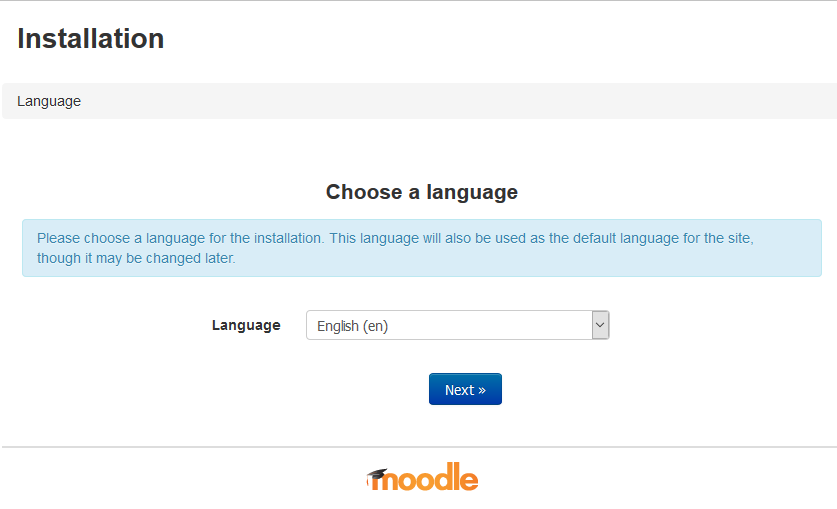
2. At the next screen change the Moodle data directory to the appropriate directory  
      
    [![016.png](https://docs.azandi.co.za/uploads/images/gallery/2020-04/scaled-1680-/fP71Tast6DLNRFSn-016.png)](https://docs.azandi.co.za/uploads/images/gallery/2020-04/fP71Tast6DLNRFSn-016.png)
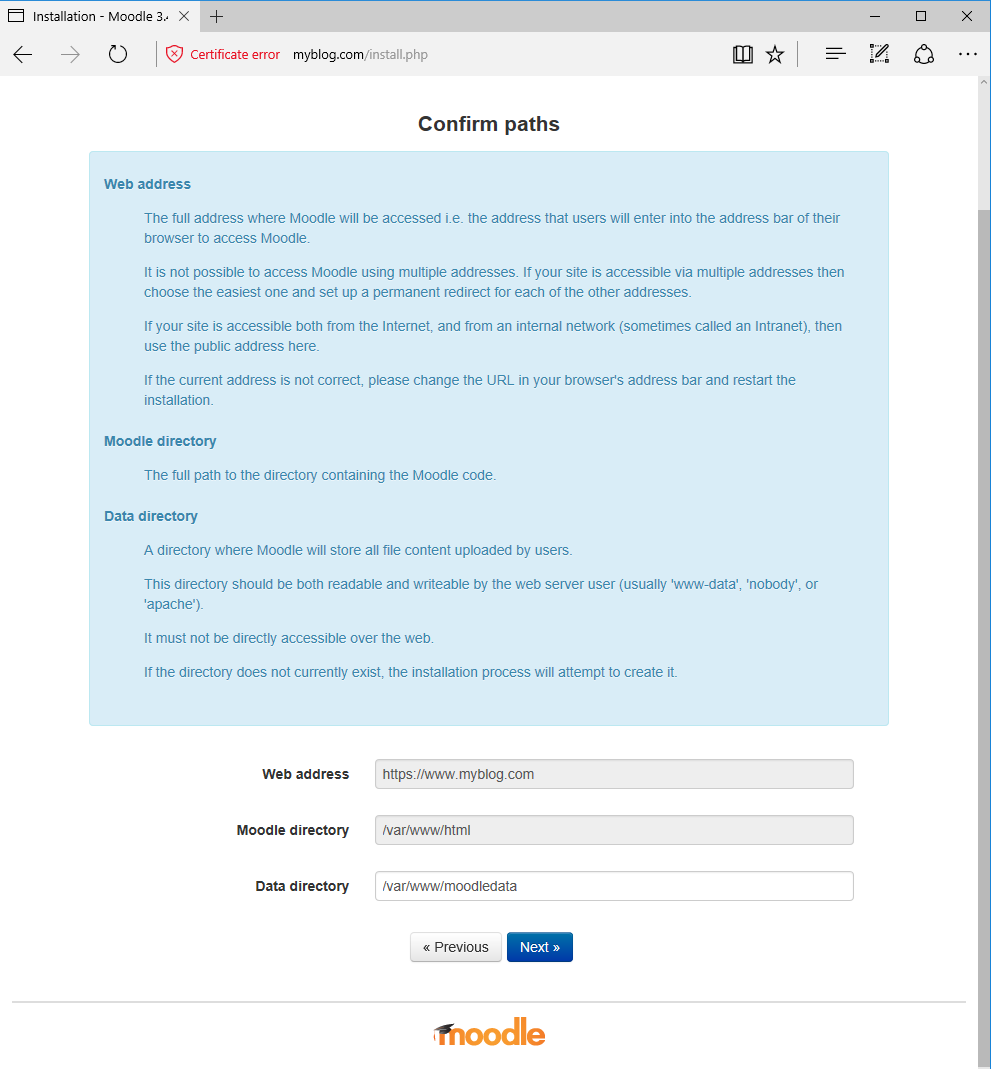
3. Select the appropriate database driver  
      
    [![017.png](https://docs.azandi.co.za/uploads/images/gallery/2020-04/scaled-1680-/KXVH9TP1SqsfTrZt-017.png)](https://docs.azandi.co.za/uploads/images/gallery/2020-04/KXVH9TP1SqsfTrZt-017.png)
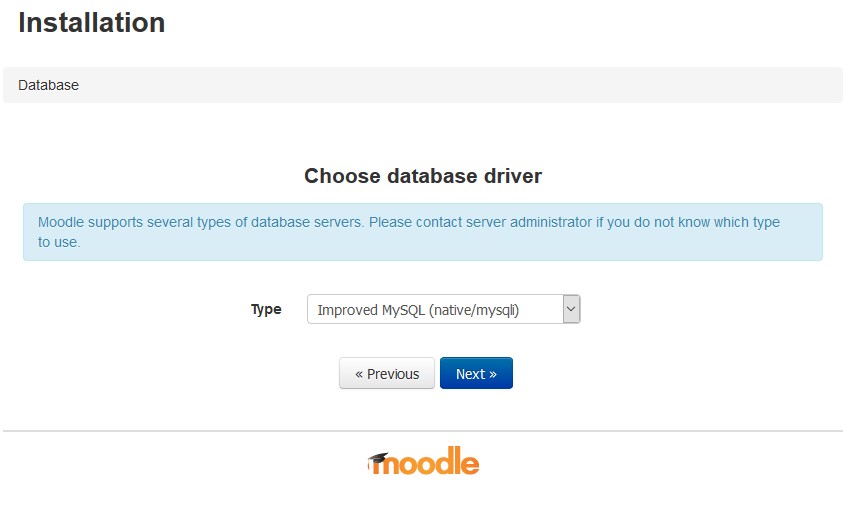
4. Enter the database details of the database that was created  
      
    [![018.png](https://docs.azandi.co.za/uploads/images/gallery/2020-04/scaled-1680-/7iKHLX4OVqfgG4Jr-018.png)](https://docs.azandi.co.za/uploads/images/gallery/2020-04/7iKHLX4OVqfgG4Jr-018.png)
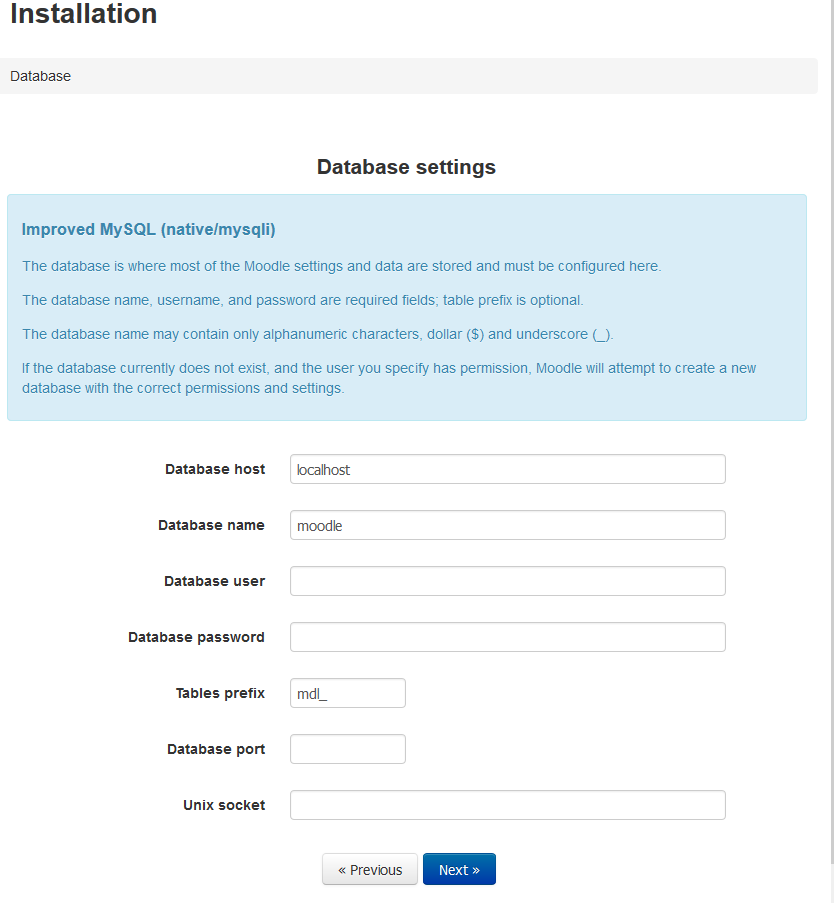
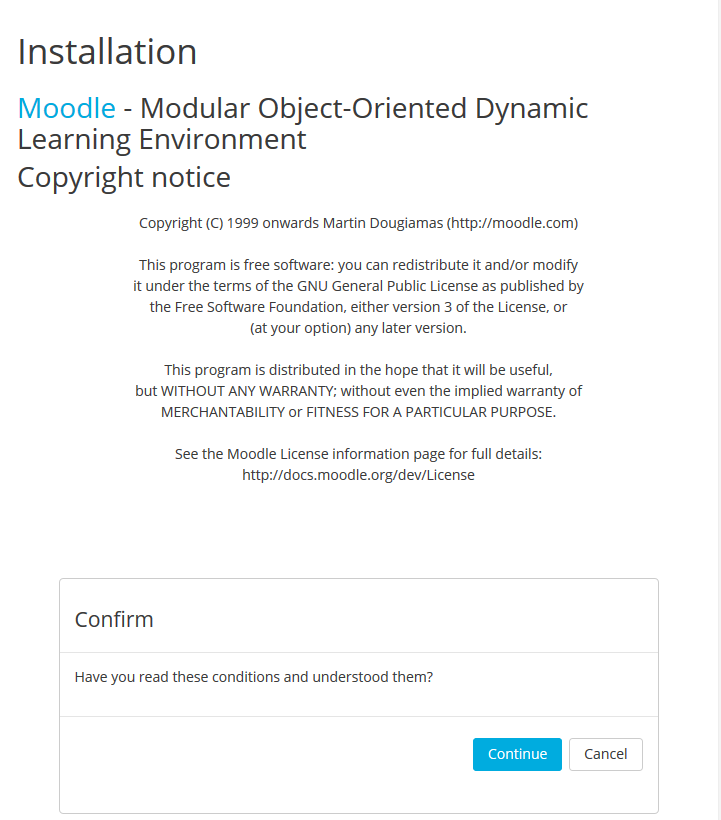
5. Now click and wait, after some seconds you should see the conditions, that you should accept  
      
    [![019.png](https://docs.azandi.co.za/uploads/images/gallery/2020-04/scaled-1680-/YEmlqnE1aBsRO77F-019.png)](https://docs.azandi.co.za/uploads/images/gallery/2020-04/YEmlqnE1aBsRO77F-019.png)
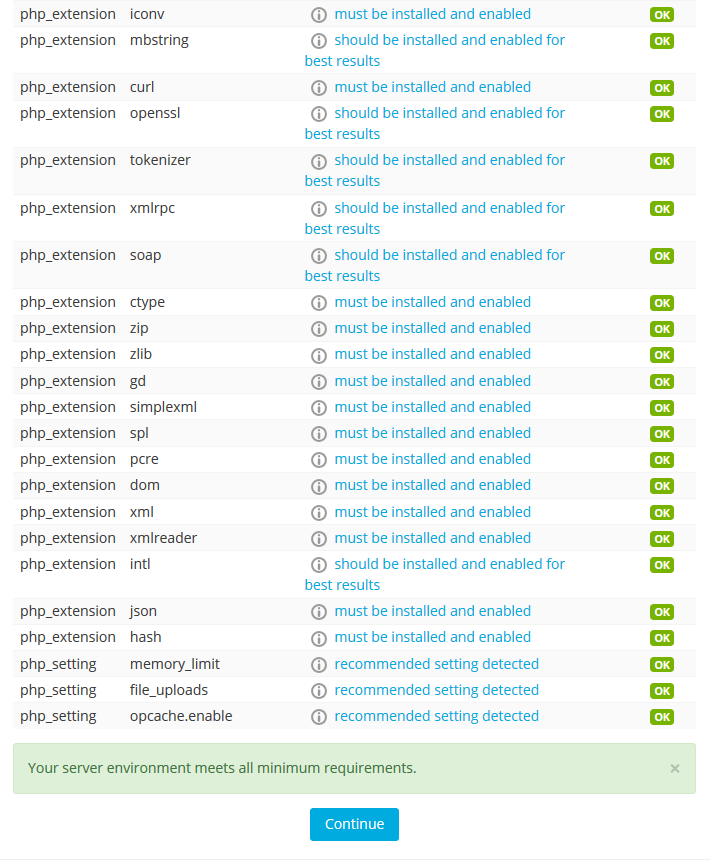
6. Moodle will perform some system checks to test that everything is working fine  
      
    [![020.png](https://docs.azandi.co.za/uploads/images/gallery/2020-04/scaled-1680-/Erc7TabdnNOn6CFH-020.png)](https://docs.azandi.co.za/uploads/images/gallery/2020-04/Erc7TabdnNOn6CFH-020.png)
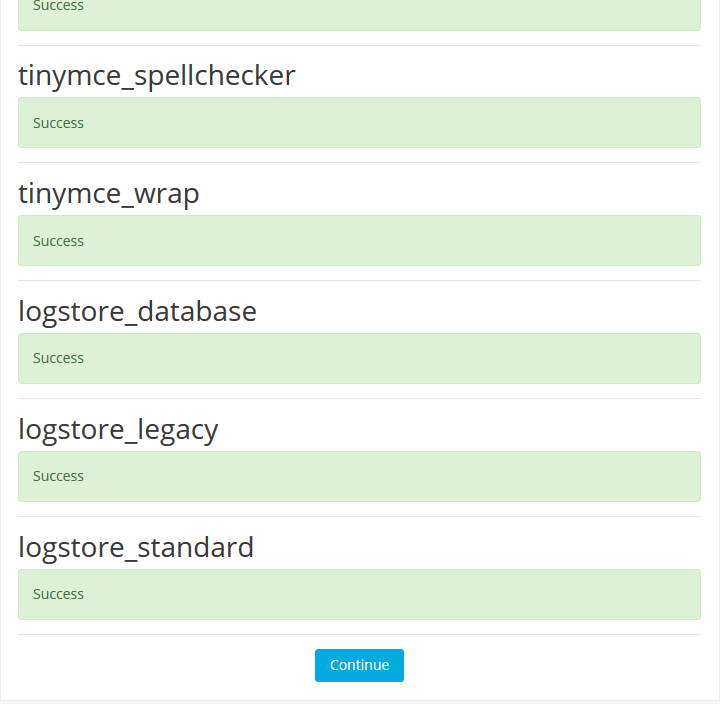
7. Click Continue and other checks will come up....  
      
    [![021.png](https://docs.azandi.co.za/uploads/images/gallery/2020-04/scaled-1680-/xtjE8330AuWtQJPK-021.png)](https://docs.azandi.co.za/uploads/images/gallery/2020-04/xtjE8330AuWtQJPK-021.png)
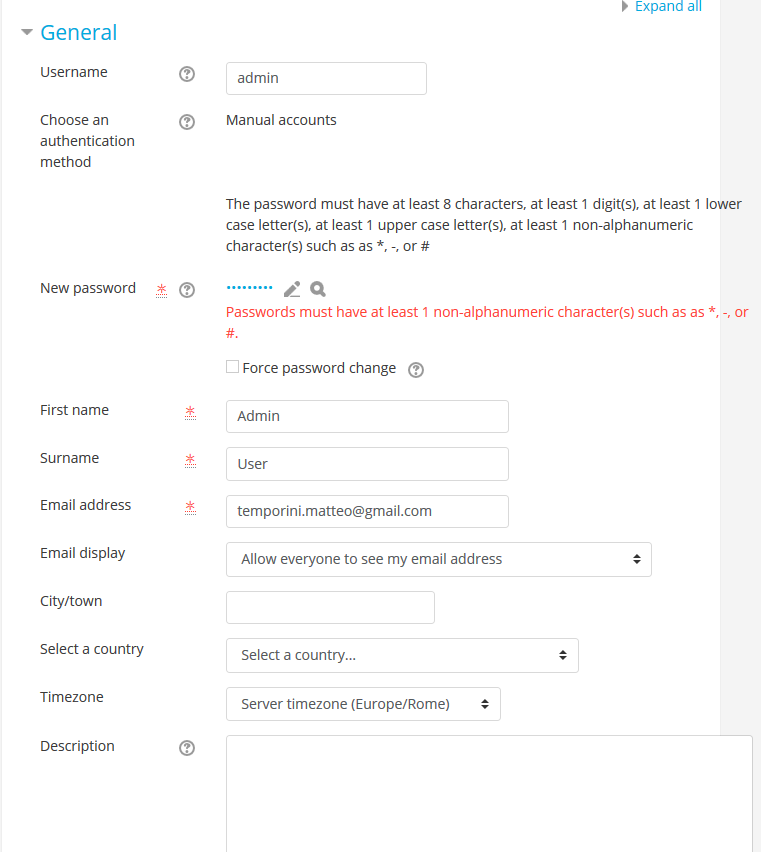
8. Click continue fill the data of admin user (Name, First, user password..)  
      
    [![022.png](https://docs.azandi.co.za/uploads/images/gallery/2020-04/scaled-1680-/FBpeaD66kiMzsQdk-022.png)](https://docs.azandi.co.za/uploads/images/gallery/2020-04/FBpeaD66kiMzsQdk-022.png)
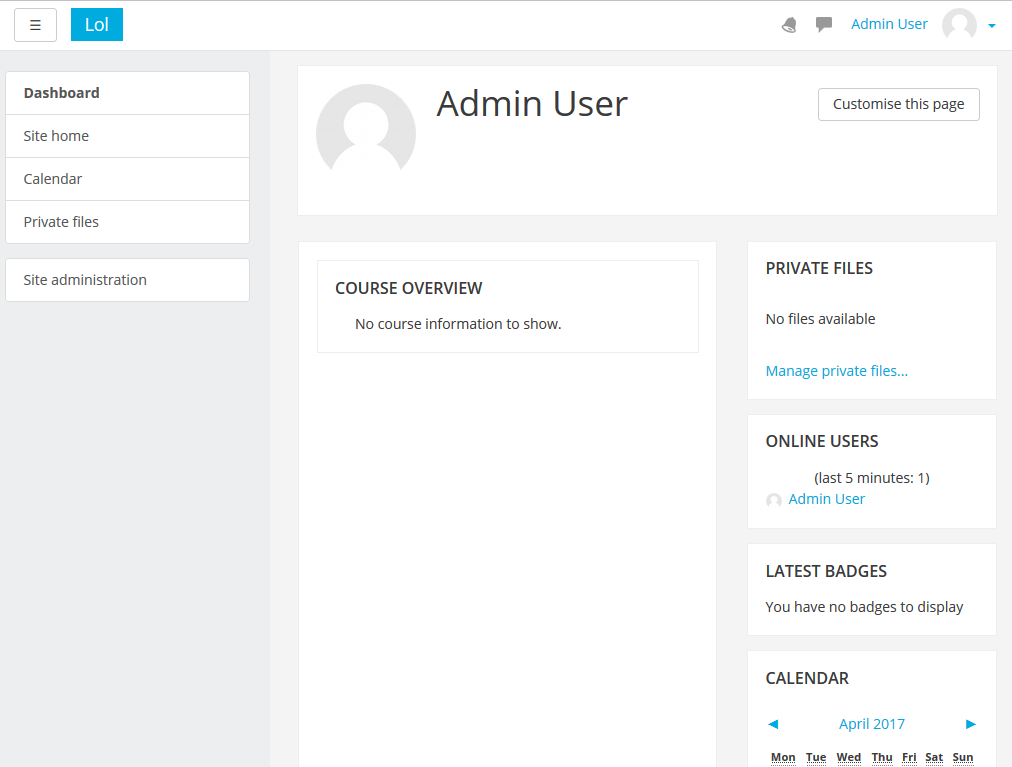
9. Finally you will land on the Administrator page  
      
    [![023.png](https://docs.azandi.co.za/uploads/images/gallery/2020-04/scaled-1680-/lqCkKDNz1QpPZs9O-023.png)](https://docs.azandi.co.za/uploads/images/gallery/2020-04/lqCkKDNz1QpPZs9O-023.png)
# Adding plugins

### Installing Plugins

1. Navigate to the Moodle plugins website ([https://moodle.org/plugins/](https://moodle.org/plugins/))
2. Search for the plugin
3. Download the latest version of the plugin, preferably matching the production version of Moodle
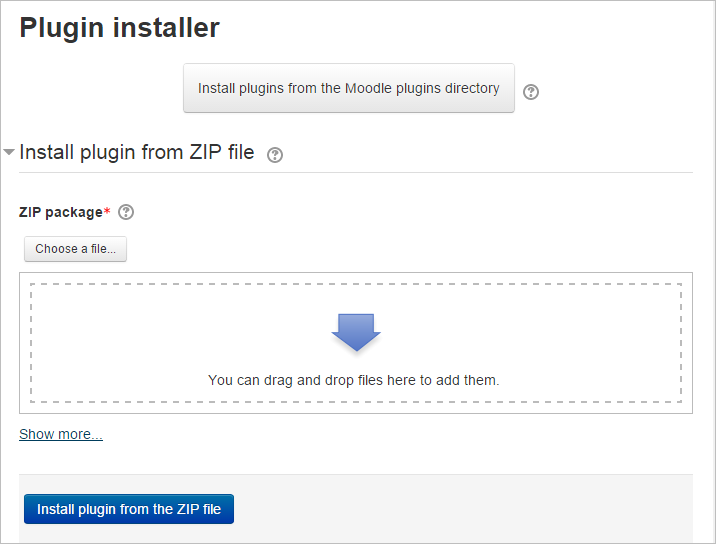
4. Login to your Moodle site as an admin and go to Administration &gt; Site administration &gt; Plugins &gt; Install plugins
5. Upload the ZIP file. You should only be prompted to add extra details (in the Show more section) if your plugin is not automatically detected  
      
    [![024.png](https://docs.azandi.co.za/uploads/images/gallery/2020-04/scaled-1680-/XR7Jns3ZbUeSnFSn-024.png)](https://docs.azandi.co.za/uploads/images/gallery/2020-04/XR7Jns3ZbUeSnFSn-024.png)
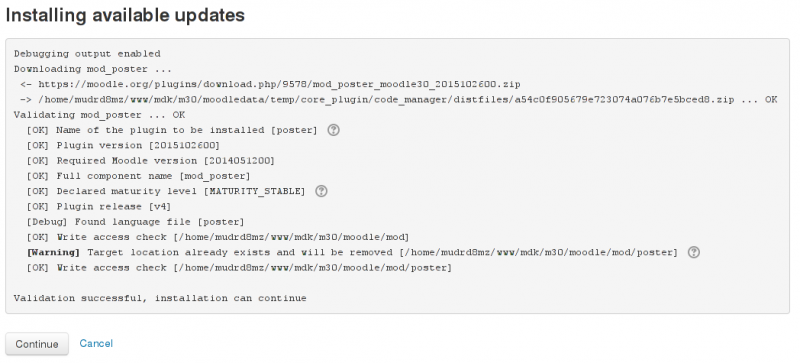
6. If your target directory is not writeable, you will see a warning message
7. Check the plugin validation report  
      
    [![025.png](https://docs.azandi.co.za/uploads/images/gallery/2020-04/scaled-1680-/qw1lDdFpybfXEs9f-025.png)](https://docs.azandi.co.za/uploads/images/gallery/2020-04/qw1lDdFpybfXEs9f-025.png)
8. Follow the prompts to complete

# Post Installation


# Cron (automatic tasks) setup

### Setting Moodle up for run tasks automatically

1. Login to server as root
2. Open crontab  
      
    `crontab -e`
3. Add the below line to crontab (replacing moodlefolder with the actual Moodle folder)

```
*/5 * * * * /usr/bin/php /var/www/moodlefolder/admin/cli/cron.php >/dev/null
```

<p class="callout info">The above example will run the command every 5 min</p>

