CentOS Server - Moodle Update
Moodle Update Checklist
Moodle Update Checklist
Moodle Update Checklist
Moodle Update Checklist
| √ | To Do | |
Preparation |
||
| 1 | Downloading Moodle | |
| 2 | Adding plugins | |
| 3 | Moodle maintenance mode | |
Backups |
||
| 4 | Backup the Moodle database | |
| 5 | Backup the Moodle data folder | |
| 6 | Backup Moodle config.php | |
Upgrading Moodle |
||
| 7 | Upgrading Moodle | |
| 8 | Post upgrade tasks |
Preparation
Preparation
Downloading Moodle
Getting the latest version of Moodle
- Go to the download page of Moodle
https://download.moodle.org/releases/latest/ - Check and ensure that the server meets the minimum requirements for the latest version of Moodle
- Update the server if necessary
- Download the latest version of Moodle
- Unzip/untar the download package
unzip file.zip -d /path/to/directory
ortar -C /path/to/directory -zxvf file.tar.gz
Preparation
Adding plugins
Adding plugins
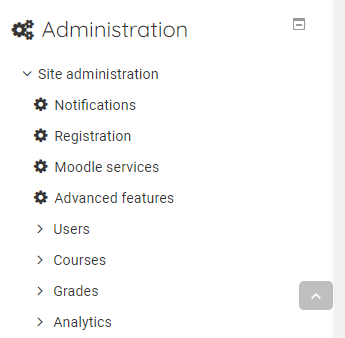
- Log in to the current version of Moodle as an administrator
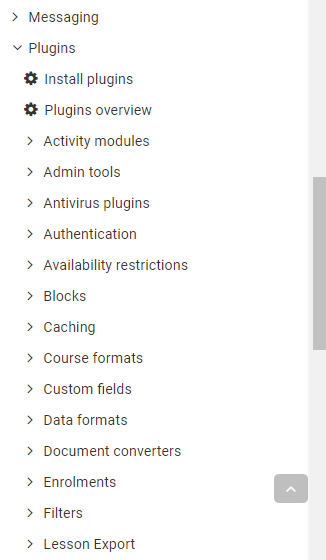
- Expand the Site Administrator menu

- Expand the Plugins menu

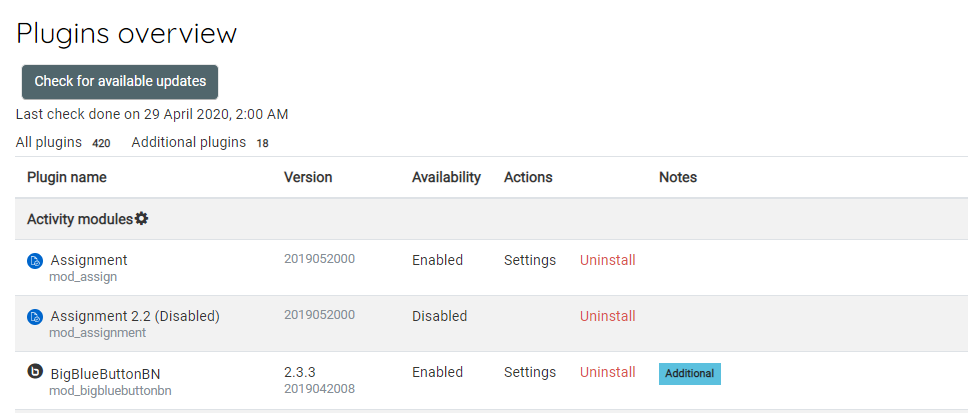
- Click Plugins Overview

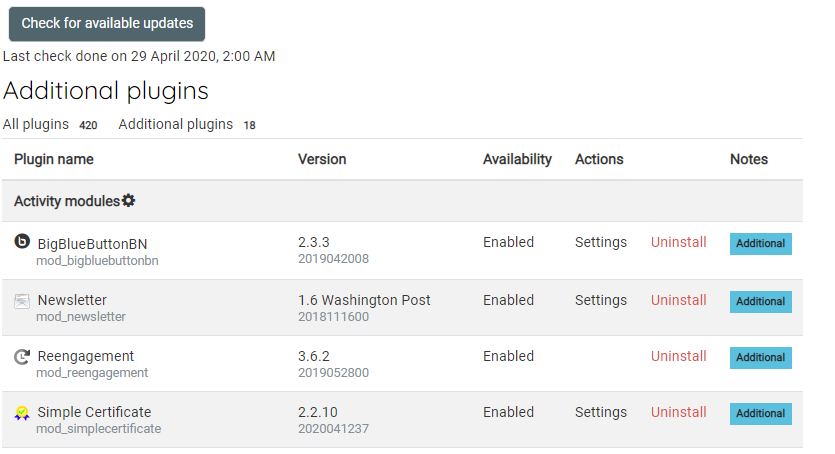
- Click Additional Plugins

- Make a note of all the additional plugins
- Navigate to Moodle plugins directory
https://moodle.org/plugins/ - Search and download each of the plugins
- Extract and add to the plugin to one of the correct common paths below
/path/to/moodle/theme/ - themes
/path/to/moodle/mod/ - activity modules and resources
/path/to/moodle/blocks/ - sidebar blocks
/path/to/moodle/question/type/ - question types
/path/to/moodle/course/format/ - course formats
/path/to/moodle/admin/report/ - admin reports
Preparation
Moodle Maintenance Mode
Moodle Maintenance Mode
- Log in as an administrator
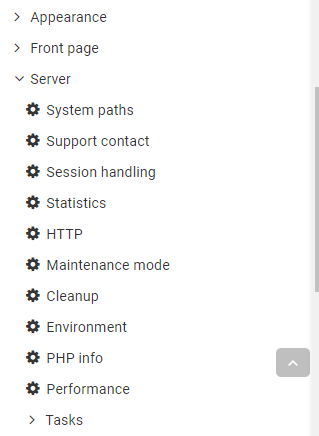
- Expand the Administrator panel
- Expand the Server sub-menu and click Maintenance Mode

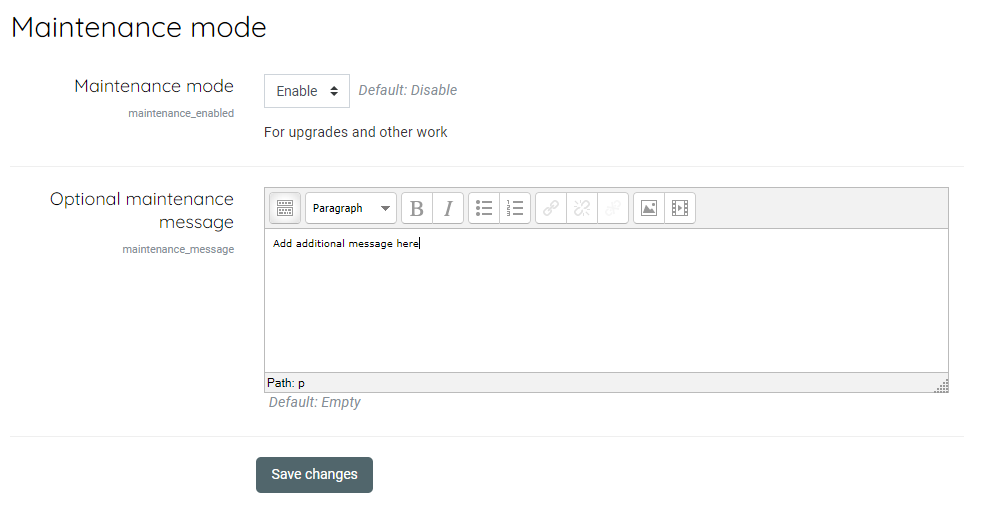
- Enable Maintenance mode, add an addition message if necessary and save the changes

Backups
Backups
Backup The Moodle Database
Moodle Database Backup
MySQL Database Dump
- Backup Moodle database with the command below
mysqldump -u [username] –p[password] [database_name] > [dump_file.sql]

The parameters of the said command as follows:

  [username] - A valid MySQL username
  [password] - A valid MySQL password for the user (leave empty to be prompted for password)
  [database_name] - A valid Database name you want to take backup
  [dump_file.sql] - The name of backup dump file you want to generate
Downloading the file
- Download the file a backup medium for safekeeping
Backups
Backup The Moodle Data Folder
Backing Up The Moodle Data Folder
Compress the data folder
- Compress the Moodle data folder with the command below
tar -czvf name-of-archive.tar.gz /path/to/moodle-data-folder

Here’s what those switches actually mean:

  -c: Create an archive.
  -z: Compress the archive with gzip.
  -v: Display progress in the terminal while creating the archive, also known as “verbose” mode.
      The v is always optional in these commands, but it’s helpful.
  -f: Allows you to specify the filename of the archive.
Downloading the file
- Once the folder is compressed, download to a backup medium for safekeeping
Backups
Backup Moodle Config.php
Although not necessary, you can also backup the Moodle directory and not just the config.php file.
Follow the same steps set out in Backup the Moodle Data Folder
Backing Up Moodle's Config File
- Copy the config.php found in the root directory of the Moode installation to a safe medium backup medium
Upgrading Moodle
Upgrading Moodle
Upgrading Moodle
Upgrading Moodle
- Rename the current production Moodle folder
mv /path/to/current/moodle-folder/ /path/to/current/moodle-folder_old - Upload/copy/move the new installation folder and rename to current Moodle production folder, i.e. if the production folder was named learn.azandi.co.za then rename the new folder to learn.azandi.co.za
- Restore the permissions/ownership of the folder and files
chowen -R apache:apache /path/to/current/moodle-folder - Navigate to the Moodle platform website in a browser and follow the onscreen prompts
Upgrading Moodle
Post Upgrade Tasks
Post Upgrade Tasks
- Check and restore all custom settings where necessary
- Check Moodle to ensure site is functioning as at it should and rectify any issues
- Take Moodle out of maintenance mode