# Preparation
# Downloading Moodle
### Getting the latest version of Moodle
1. Go to the download page of Moodle
`https://download.moodle.org/releases/latest/`
2. Check and ensure that the server meets the minimum requirements for the latest version of Moodle
3. Update the server if necessary
4. Download the latest version of Moodle
5. Unzip/untar the download package
`unzip file.zip -d /path/to/directory`
or
`tar -C /path/to/directory -zxvf file.tar.gz`
# Adding plugins
### Adding plugins
1. Log in to the current version of Moodle as an administrator
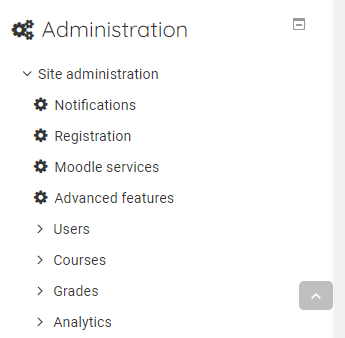
2. Expand the Site Administrator menu
[](https://docs.azandi.co.za/uploads/images/gallery/2020-04/dQkwIGU1YEkKqeoR-026.PNG)
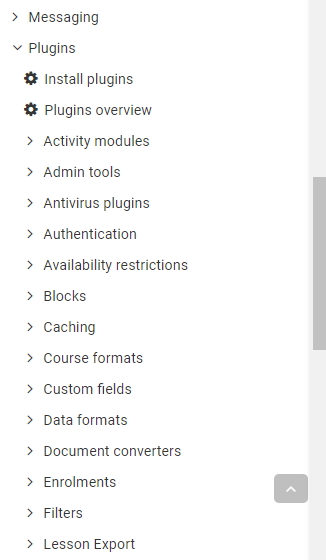
3. Expand the Plugins menu
[](https://docs.azandi.co.za/uploads/images/gallery/2020-04/eeXLEzeYsPYPGYSQ-027.PNG)
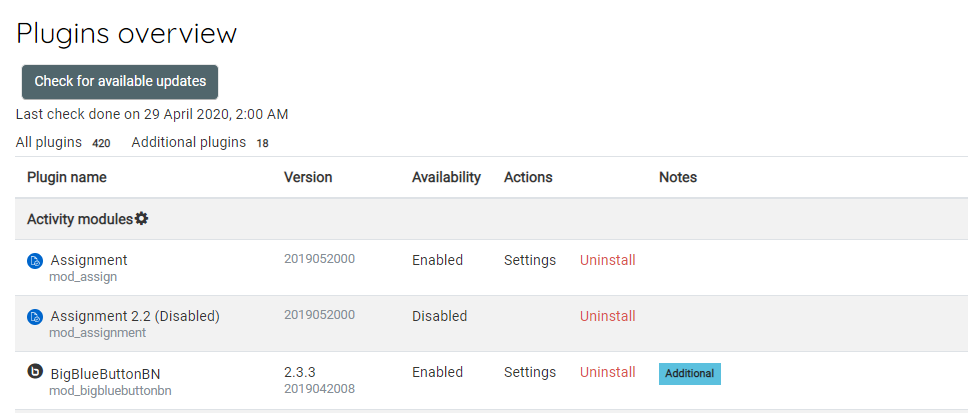
4. Click Plugins Overview
[](https://docs.azandi.co.za/uploads/images/gallery/2020-04/4bMf9emo79NaFxVH-028.PNG)
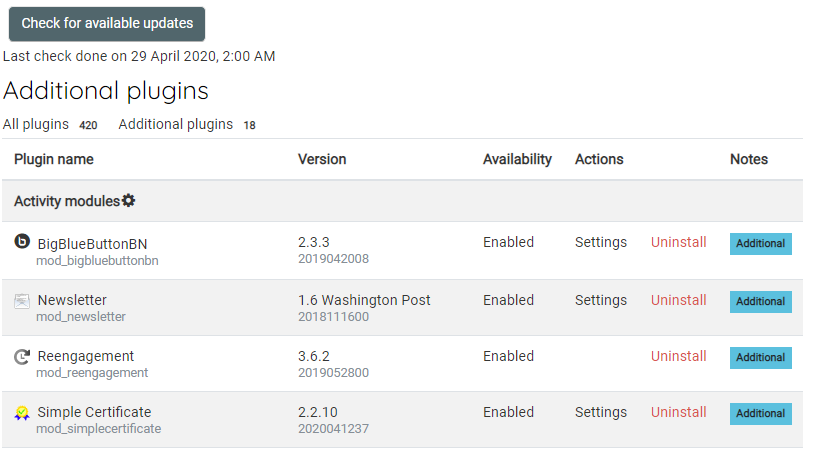
5. Click Additional Plugins
[](https://docs.azandi.co.za/uploads/images/gallery/2020-04/wLMgU5X3qCjVRIdF-029.PNG)
6. Make a note of all the additional plugins
7. Navigate to Moodle plugins directory
`https://moodle.org/plugins/`
8. Search and download each of the plugins
9. Extract and add to the plugin to one of the correct common paths below
```
/path/to/moodle/theme/ - themes
/path/to/moodle/mod/ - activity modules and resources
/path/to/moodle/blocks/ - sidebar blocks
/path/to/moodle/question/type/ - question types
/path/to/moodle/course/format/ - course formats
/path/to/moodle/admin/report/ - admin reports
```
# Moodle Maintenance Mode
### Moodle Maintenance Mode
1. Log in as an administrator
2. Expand the Administrator panel
[](https://docs.azandi.co.za/uploads/images/gallery/2020-04/dQkwIGU1YEkKqeoR-026.PNG)
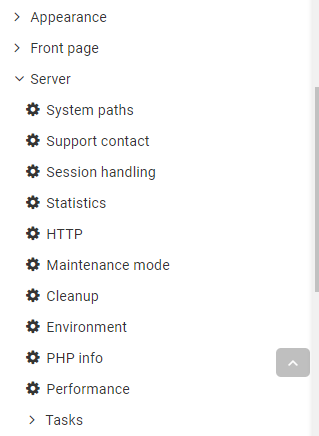
3. Expand the Server sub-menu and click Maintenance Mode
[](https://docs.azandi.co.za/uploads/images/gallery/2020-04/m3Oh5aK69FviFjW9-030.PNG)
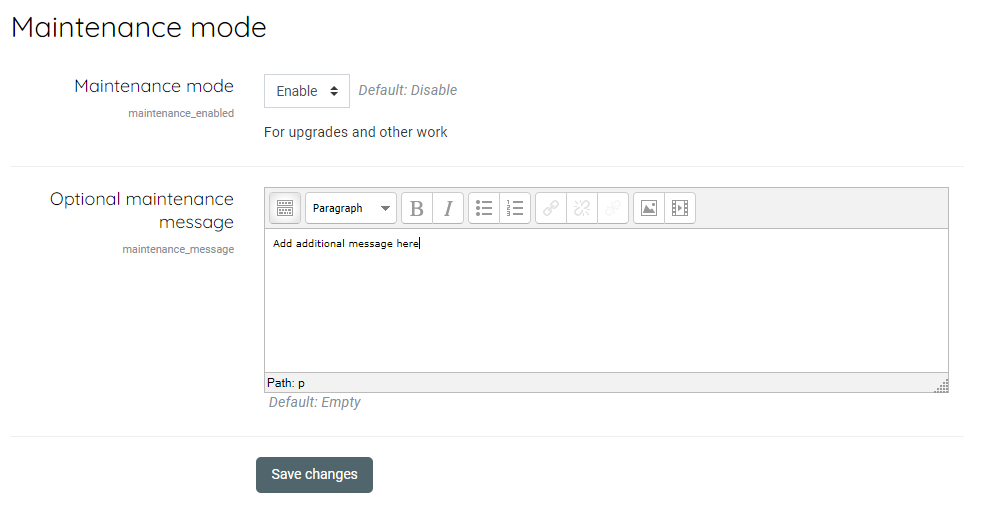
4. Enable Maintenance mode, add an addition message if necessary and save the changes
[](https://docs.azandi.co.za/uploads/images/gallery/2020-04/8ijtpxEVpAkXLwS2-031.PNG)