Preparation
Downloading Moodle
Getting the latest version of Moodle
- Go to the download page of Moodle
https://download.moodle.org/releases/latest/ - Check and ensure that the server meets the minimum requirements for the latest version of Moodle
- Update the server if necessary
- Download the latest version of Moodle
- Unzip/untar the download package
unzip file.zip -d /path/to/directory
ortar -C /path/to/directory -zxvf file.tar.gz
Adding plugins
Adding plugins
- Log in to the current version of Moodle as an administrator
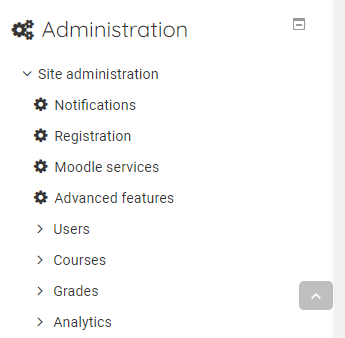
- Expand the Site Administrator menu

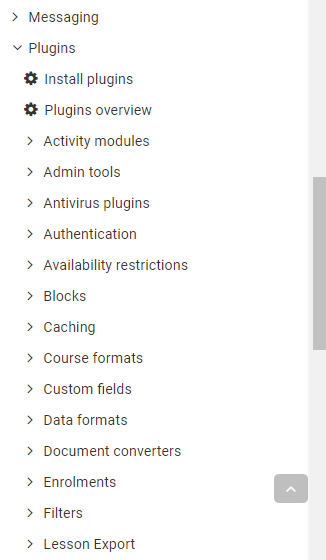
- Expand the Plugins menu

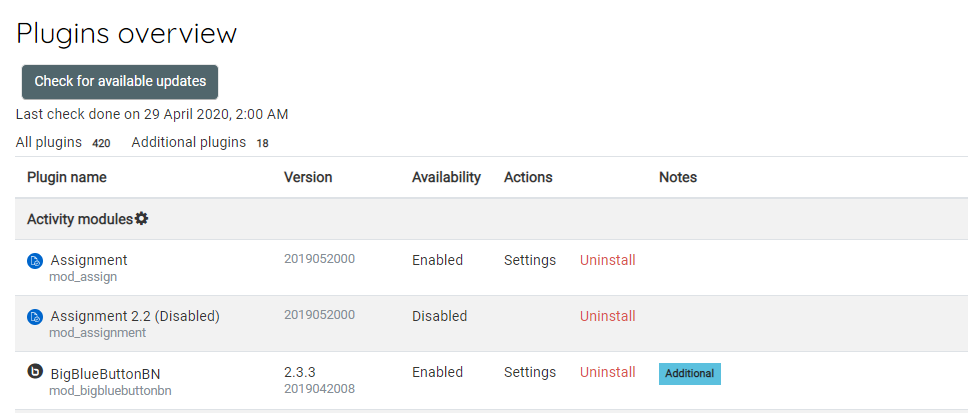
- Click Plugins Overview

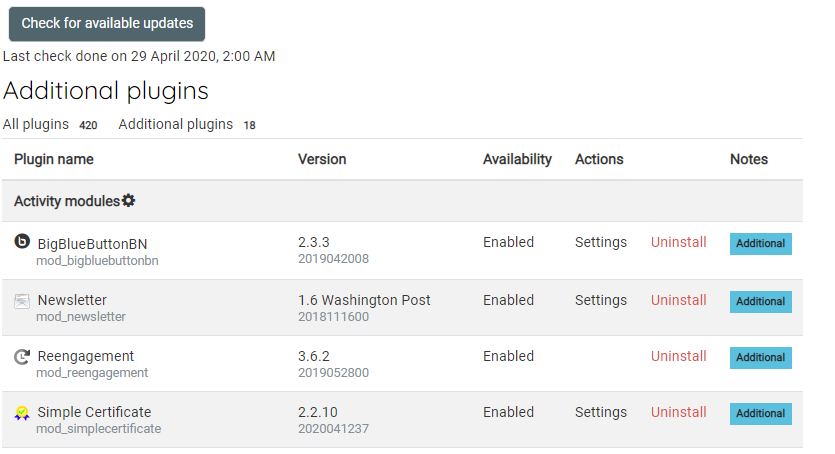
- Click Additional Plugins

- Make a note of all the additional plugins
- Navigate to Moodle plugins directory
https://moodle.org/plugins/ - Search and download each of the plugins
- Extract and add to the plugin to one of the correct common paths below
/path/to/moodle/theme/ - themes
/path/to/moodle/mod/ - activity modules and resources
/path/to/moodle/blocks/ - sidebar blocks
/path/to/moodle/question/type/ - question types
/path/to/moodle/course/format/ - course formats
/path/to/moodle/admin/report/ - admin reports
Moodle Maintenance Mode
Moodle Maintenance Mode
- Log in as an administrator
- Expand the Administrator panel
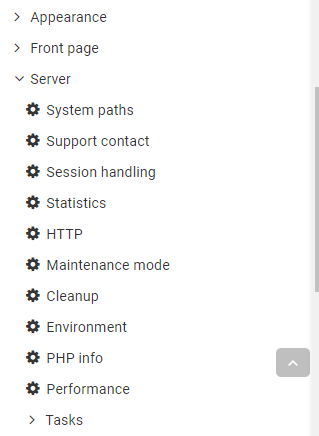
- Expand the Server sub-menu and click Maintenance Mode

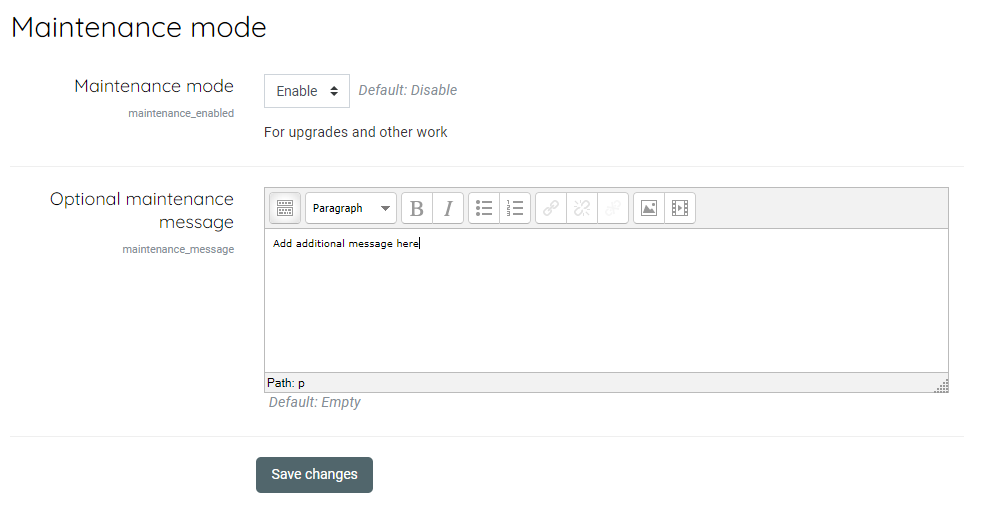
- Enable Maintenance mode, add an addition message if necessary and save the changes