CentOS Server - Installation
Basic Server Installation
- Server Install Checklist
- Preparation
- System Update
- Process Hardening
- OS Hardening
- Firewall Configuration
- Remote Administration Via SSH
- System Integrity and Intrusion Detection
- Anti-Virus Considerations
Server Install Checklist
Server Install Checklist
Server Checklist
Server Checklist
| Step | √ | To Do |
Preparation |
||
| 1 | Install the server image | |
| 2 | Add additional repositories | |
System Update |
||
| 3 | Update with the latest updates | |
| 4 | Configure automatic updates | |
| 5 | Configure network time protocol (NTP) | |
Process Hardening |
||
| 6 | Restrict core dumps | |
| 7 | Enable randomized virtual memory region placement | |
OS Hardening |
||
| 8 | Remove legacy services (e.g., telnetserver; rsh, rlogin, rcp; ypserv, ypbind; tftp, tftp-server; talk, talkserver) | |
| 9 | Disable or remove server services that are not going to be utilized (e.g. FTP, DNS, LDAP, SMB, DHCP, NFS, SNMP, etc.) | |
Network Security and Firewall Configuration |
||
| 10 | Firewall Configuration | |
Remote Administration Via SSH |
||
| 11 | Set SSH protocol to 2 | |
| 12 | Disable SSH root login | |
| 13 | Set SSH permitemptypasswords to no | |
System Integrity and Intrusion Detection |
||
| 14 | Install and configure Fail2Ban | |
| 15 | Install and configure AIDE | |
Anti-Virus Considerations |
||
| 16 | Install and enable anti-virus software | |
| 17 | Configure daily scan |
Preparation
Preparation
Server Image Installation
Server Image Installation
- Browse to konsoleH and log in at Admin level
- Select or search for your Self-Managed server in the Hosting Service tab
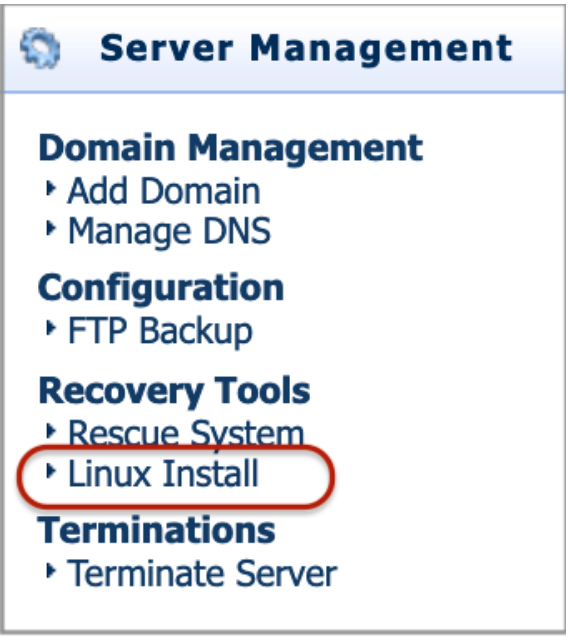
- Select Linux Install under Recovery Tools from the left-hand menu

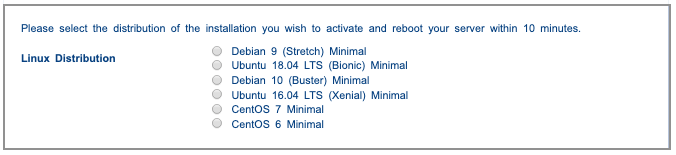
- Select the distribution of the installation that you wish to activate

- Select Activate on the top right-hand side
- Reboot your server within 10 minutes via the RMM / IPMI device
- During the server startup process, you have the option to reconfigure your RAID (TruServ Commerce only) via the RAID controller bios.
- The server will boot into the OS installation environment you selected in step 4
- Follow the onscreen prompts to install your OS and configure your disks and partition layout
- Once the install is complete your server will reboot into your installed OS and will be accessible
- Access your server with the user(s) configured via SSH (some Linux distributions do not allow root logins by default over SSH).
Preparation
Add Additional Repositories
Install additional repositories
Additional Repositories
- Using the commands below, install the Epel and PHP repositories:
yum install https://dl.fedoraproject.org/pub/epel/epel-release-latest-7.noarch.rpm
yum install http://rpms.remirepo.net/enterprise/remi-release-7.rpm
MySQL Repository
Replace MariaDB with MySQL
yum localinstall 'link address copied from MySQL website'Enable the correct release series
- Manually edit the '/etc/yum.repos.d/mysql-community.repo' file with your favorite text editor.
- Specify enabled=0 to disable a subrepository, or enabled=1 to enable a subrepository, see example below to enable MySQL 5.6 and disable MySQL 5.7 series.
# Enable to use MySQL 5.6 & Disabled MySQL 5.7
[mysql56-community]
name=MySQL 5.6 Community Serverbaseurl=http://repo.mysql.com/yum/mysql-5.6-
community/el/6/$basearch/
enabled=1
gpgcheck=1
gpgkey=file:///etc/pki/rpm-gpg/RPM-GPG-KEY-mysql
[mysql57-community]
name=MySQL 5.7 Community Serverbaseurl=http://repo.mysql.com/yum/mysql-5.7-
community/el/6/$basearch/
enabled=0
gpgcheck=1gpgkey=file:///etc/pki/rpm-gpg/RPM-GPG-KEY-mysql
Note: When sub repositories for more than one release series are enabled, the latest series will be used by Yum.
System Update
System Update
Update With The Latest Update
Updating packages
- Run the command below and press 'y' at the prompt. After the update has finished, restart the server.
yum updateSystem Update
Configure Automatic Updates
Setting Up Automatic Updates
Install yum-cron
- Install yum-cron, the package that allows us to do automatic updates
yum -y install yum-cronConfigure yum-cron for auto-update
- Edit the file /etc/yum/yum-cron.conf and change the options below
apply_updates = no

to

apply_updates = no
emit_via = stdio
to
emit_via = emailemail_to =
to
email_to = sys admin email addressVerify that the service is running
- Very that the service is running with the command
systemctl status yum-cron.serviceThe output should look similar to
# /bin/systemctl status  yum-cron.service
yum-cron.service - Run automatic yum updates as a cron job
   Loaded: loaded (/usr/lib/systemd/system/yum-cron.service; enabled)
   Active: active (exited) since sab 2014-08-09 00:37:16 CEST; 16h ago
  Process: 830 ExecStart=/bin/touch /var/lock/subsys/yum-cron (code=exited, status=0/SUCCESS)
 Main PID: 830 (code=exited, status=0/SUCCESS)
   CGroup: /system.slice/yum-cron.service
If the service is stopped, start it with the following command
systemctl start yum-cron.serviceSystem Update
Configure Network Time Protocol (NTP)
Install NTP Daemon
- Install NTPd with the following command
yum -y install ntpConfigure Firewall
- Add NTP service to the 'allow' rules and reload the firewall to apply changes
firewall-cmd --add-service=ntp --permanent

firewall-cmd --reload
Edit ntp.conf File
- Change/add the /etc/ntp.conf by removing current time servers and adding new time servers
Change from

# hetzner ntp servers
server ntp1.hetzner.de iburst
server ntp2.hetzner.com iburst
server ntp3.hetzner.net iburst

to

# hetzner ntp servers
# server ntp1.hetzner.de iburst
# server ntp2.hetzner.com iburst
# server ntp3.hetzner.net iburst

Add the following time servers
==============================

server 0.pool.ntp.org
server 1.za.pool.ntp.org
server 2.africa.pool.ntp.org
Start And Check NTP service
- Start NTP service and check to see if it is active
Start and enable NTPd
=====================

systemctl start ntpd
systemctl enable ntpd

Check to see if service is enabled
==================================

ntpq -p
Process Hardening
Process Hardening
Restrict Core Dumps
Ensure core dumps are restricted
- Edit the /etc/security/limits.conf and /etc/sysctl.conf files, adding the lines below
/etc/security/limits.conf
=========================

* hard core 0

/etc/sysctl.conf
================

fs.suid_dumpable = 0
Active kernel parameter
- Active the kernel parameter by running the following command
sysctl -w fs.suid_dumpable=0Process Hardening
Enable Randomized Virtual Memory Region Placement
Randomized virtual memory region placement
- Add the line below to the /etc/sysctl.conf file
kernel.randomize_va_space = 2 OS Hardening
OS Hardening
Remove Legacy Services
The removal of legacy services
Check for legacy services
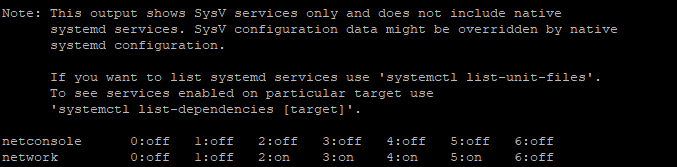
- To check for legacy services, use the command the below
chkconfig --listYou should get an output similar to
Disable legacy services
- Confirm the necessity of the service and disable if not necessary with the below command
chkconfig "service name" off

I.e to disable netconsole
=========================

chkconfig netconsole off
OS Hardening
Disable Or Remove Server Services
Disable or remove server services that are not going to be utilized (e.g. FTP, DNS, LDAP, SMB, DHCP, NFS, SNMP, etc.)
Display a list of services available
- To display a list of services available use the command the below
systemctl -t serviceThis will display something similar to

Disable unnecessary services
- Stop and turn OFF auto-start services not needed
systemctl stop "service name"
systemctl disable "service name"

I.e. to stop and disable the Postfix service
============================================

systemctl stop postfix
systemctl disable postfix
Firewall Configuration
Firewall Configuration
Firewall Configuration
Configuring The Firewall
Start and enable the firewall
- To start and enable the firewall use the commands below
systemctl start firewalld
systemctl enable firewalld
Get an overview
Default Zone
- Find the default zone. The default zone is usually public
firewall-cmd --get-default-zone
Display Allowed Services
- Display the allowed services of the zone
firewall-cmd --list-service --zone=externalBy default, "public" zone is applied with a NIC and dhcpv6-client and ssh are allowed.

Display Services Defined By Default
- To list all service defined by default use the command below
firewall-cmd --get-servicesIt should give you an output similar to

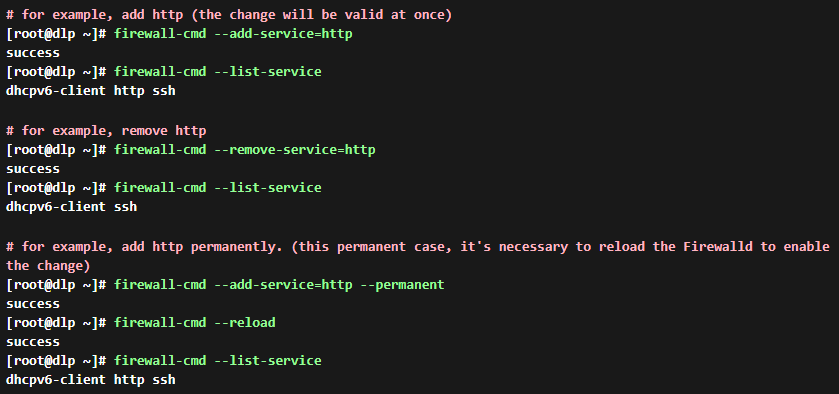
Add/Remove services
- Add or Remove allowed services. The change will be back after rebooting the system. If you change settings permanently, add the "--permanent" option.
Add/Remove Ports
- Add or remove allowed ports
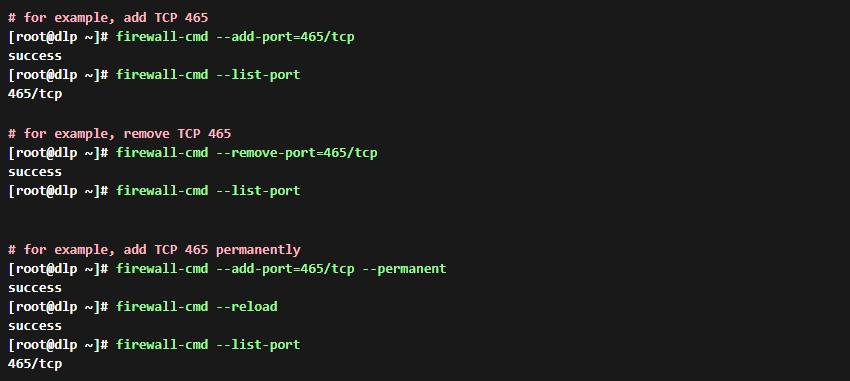
Add/Remove Prohibited ICMP Types
- Add or remove prohibited ICMP types
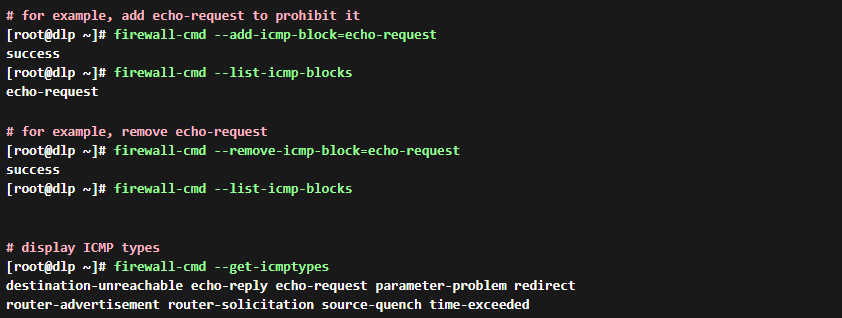
Remote Administration Via SSH
Remote Administration Via SSH
Set SSH protocol to 2
Set SSH protocol to 2
SSH has two protocols it may use, protocol 1 and protocol 2. The older protocol 1 is less secure and should be disabled unless you know that you specifically require it.
- Open the sshd config
vi /etc/ssh/sshd_config - Add or amend as shown below
# Protocol 2,1
Protocol 2 - Restart the sshd service
systemctl restart sshd.service
Remote Administration Via SSH
Disable SSH root login
Disabling root login via SSH
Disabling SSH root login will add an extra layer of security. It would be more secure to brute force
attacks or in case your password is stolen.
- Create a non-root user
adduser usernamepasswd username - Open the ssh configuration file with your editor.
vi /etc/ssh/sshd_config - Add the line “PermitRootLogin no.” Or uncomment the line "#PermitRootLogin yes" and
change yes to no.#LoginGraceTime 2m#PermitRootLogin yes#StrictModes yes#MaxAuthTries 6#MaxSessions 10PermitRootLogin no - Save and exit the file.
- Restart the ssh service
systemctl restart sshd.service
Remote Administration Via SSH
Set SSH permitemptypasswords to no
Set SSH permitemptypasswords to no
- Open the ssh configuration file with your editor.
vi /etc/ssh/sshd_config - Add or amend as shown below
PermitEmptyPasswords no - Restart the sshd service
systemctl restart sshd.service
System Integrity and Intrusion Detection
System Integrity and Intrusion Detection
Install And Configure Fail2Ban
Installation
- Run the command below to install Fail2Ban
yum install fail2ban fail2ban-systemdConfiguration
- Copy the “jail.conf” file and re-save it with the name “jail.local”
cp -pf /etc/fail2ban/jail.conf /etc/fail2ban/jail.local - Edit the jail.local and add your local IP address onto the ignoreip line
[DEFAULT]

# "ignoreip" can be an IP address, a CIDR mask or a DNS host. Fail2ban will not
# ban a host which matches an address in this list. Several addresses can be
# defined using space separator.
ignoreip = 127.0.0.1

# Override /etc/fail2ban/jail.d/00-firewalld.conf:
banaction = iptables-multiport

# "bantime" is the number of seconds that a host is banned.
bantime  = 600

# A host is banned if it has generated "maxretry" during the last "findtime"
# seconds.
findtime  = 600

# "maxretry" is the number of failures before a host get banned.
maxretry = 5
Add a jail file to protect SSH access
- Create a new file called sshd.local
touch /etc/fail2ban/jail.d/sshd.local && chmod +x /etc/fail2ban/jail.d/sshd.local - Edit the file and add the lines below
vi /etc/fail2ban/jail.d/sshd.local

Add these lines to the file
===========================

[sshd]
enabled = true
port = ssh
#action = firewallcmd-ipset
logpath = %(sshd_log)s
maxretry = 5
bantime = 86400
Enable and start the FAIL2BAN service
- Run the following commands to enable and start the Fail2Ban service
systemctl enable fail2ban
systemctl start fail2ban
System Integrity and Intrusion Detection
Install and configure AIDE
Install and configure Host Based IDS (Intrusion Detection System) "AIDE"
- Install AIDE
yum -y install aide - Configure AIDE and initialize database. It's possible to use AIDE with default config but if you'd like to customize settings, change configuration file like follows. Setting rules are written near 26-84 lines, refer to them.

- Execute checking
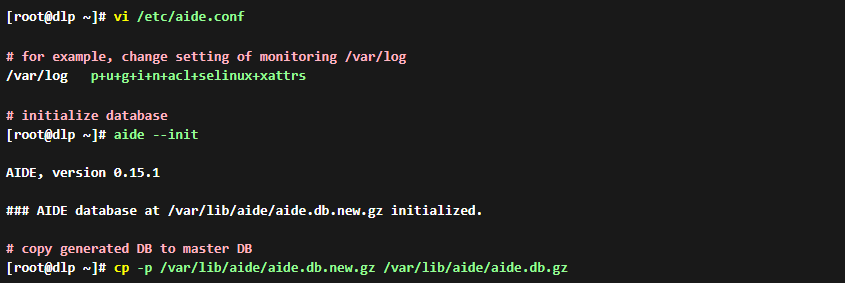
[root@dlp ~]# aide --check
# if thete is no unmatch, it displayed "Okay"

AIDE, version 0.15.1

### All files match AIDE database. Looks okay!

# try to change a file and check again
[root@dlp ~]# chmod 640 /root/anaconda-ks.cfg
[root@dlp ~]# aide --check
# detected differences like follows
AIDE 0.15.1 found differences between database and filesystem!!
Start timestamp: 2015-06-17 19:55:20

Summary:
  Total number of files:        39039
  Added files:                  0
  Removed files:                0
  Changed files:                1


---------------------------------------------------
Changed files:
---------------------------------------------------

changed: /root/anaconda-ks.cfg

---------------------------------------------------
Detailed information about changes:
---------------------------------------------------


File: /root/anaconda-ks.cfg
 Perm     : -rw-------                       , -rw-r-----
 Ctime    : 2015-05-24 02:22:04              , 2015-06-19 11:55:15
 ACL      : old = A:
----
user::rw-
group::---
other::---
----
                  D: <NONE>
            new = A:
----
user::rw-
group::r--
other::---
----
                  D: <NONE>
Update AIDE database
- If there is no ploblem even if some differences are detected, then update database like follows
[root@dlp ~]# aide --update
AIDE 0.15.1 found differences between database and filesystem!!
Start timestamp: 2015-06-17 19:56:31

Summary:
  Total number of files:        39039
  Added files:                  0
  Removed files:                0
  Changed files:                1


---------------------------------------------------
Changed files:
---------------------------------------------------

changed: /root/anaconda-ks.cfg
.....
.....

# update database
[root@dlp ~]# cp -p /var/lib/aide/aide.db.new.gz /var/lib/aide/aide.db.gz
Add Cron job and email logs
- Add in Cron if check regulary. Log file [/var/log/aide/aide.log] is updated every time and if there is no difference, it is updated with zero byte, so if you's like to save log files, it needs to create a shell script or send results via email or others
# for example, add daily check in Crontab and send results via email

[root@dlp ~]# vi /etc/cron.d/aide
00 01 * * * /usr/sbin/aide --update | mail -s 'Daily Check by AIDE' root
Anti-Virus Considerations
Anti-Virus Considerations
Install And Enable Anti-Virus Software
Clamav installation
Preparation for ClamAV installation
- Ensure that the EPEL repository has been installed
yum -y install epel-release

yum clean all
ClamAV installation
- Run the command below to install ClamAV
yum -y install clamav-server clamav-data clamav-update clamav-filesystem clamav clamav-scanner-systemd clamav-devel clamav-lib clamav-server-systemdConfiguring ClamAV
- Remove "Example" string from the configuration file
sed -i -e "s/^Example/#Example/" /etc/clamd.d/scan.conf - Edit scan.conf
Open scan.conf for editing
==========================

vi /etc/clamd.d/scan.conf

Look for and the change line from
=================================

#LocalSocket /var/run/clamd.scan/clamd.sock

to

LocalSocket /var/run/clamd.scan/clamd.sock
Configure FreshClam
- Remove "Example" string from ClamAV’s freshclam update engine configuration file
sed -i -e "s/^Example/#Example/" /etc/freshclam.conf - Run the virus definition database update
freshclam
Start and enable Clamd services
- Use the following commands to start and enable Clamd services
systemctl start clamd@scan

systemctl enable clamd@scan
Anti-Virus Considerations
Configure Daily Scans
Configure ClamAV for daily scans
- Create and edit the file clamscan_daily in the folder /etc/cron.daily
Create clamscan_daily
=====================

vi /etc/cron.daily

=====================================
Add below to file changing the option

EMAIL_FROM="from email address";
EMAIL_TO="to email address";
DIRTOSCAN="list of directories";

as required
=====================================

#!/bin/bash
LOGFILE="/var/log/clamav/clamav-$(date +'%Y-%m-%d').log";
EMAIL_MSG="Please see the log file attached.";
EMAIL_FROM="from email address";
EMAIL_TO="to email address";
DIRTOSCAN="list of directories";

for S in ${DIRTOSCAN}; do
 DIRSIZE=$(du -sh "$S" 2>/dev/null | cut -f1);

 echo "Starting a daily scan of "$S" directory.
 Amount of data to be scanned is "$DIRSIZE".";

 clamscan -ri "$S" >> "$LOGFILE";

 # get the value of "Infected lines"
 MALWARE=$(tail "$LOGFILE"|grep Infected|cut -d" " -f3);

 # if the value is not equal to zero, send an email with the log file attached
 if [ "$MALWARE" -ne "0" ];then
 # using heirloom-mailx below
 echo "$EMAIL_MSG"|mail -a "$LOGFILE" -s "Malware Found" -r "$EMAIL_FROM" "$EMAIL_TO";
 fi
done

exit 0